

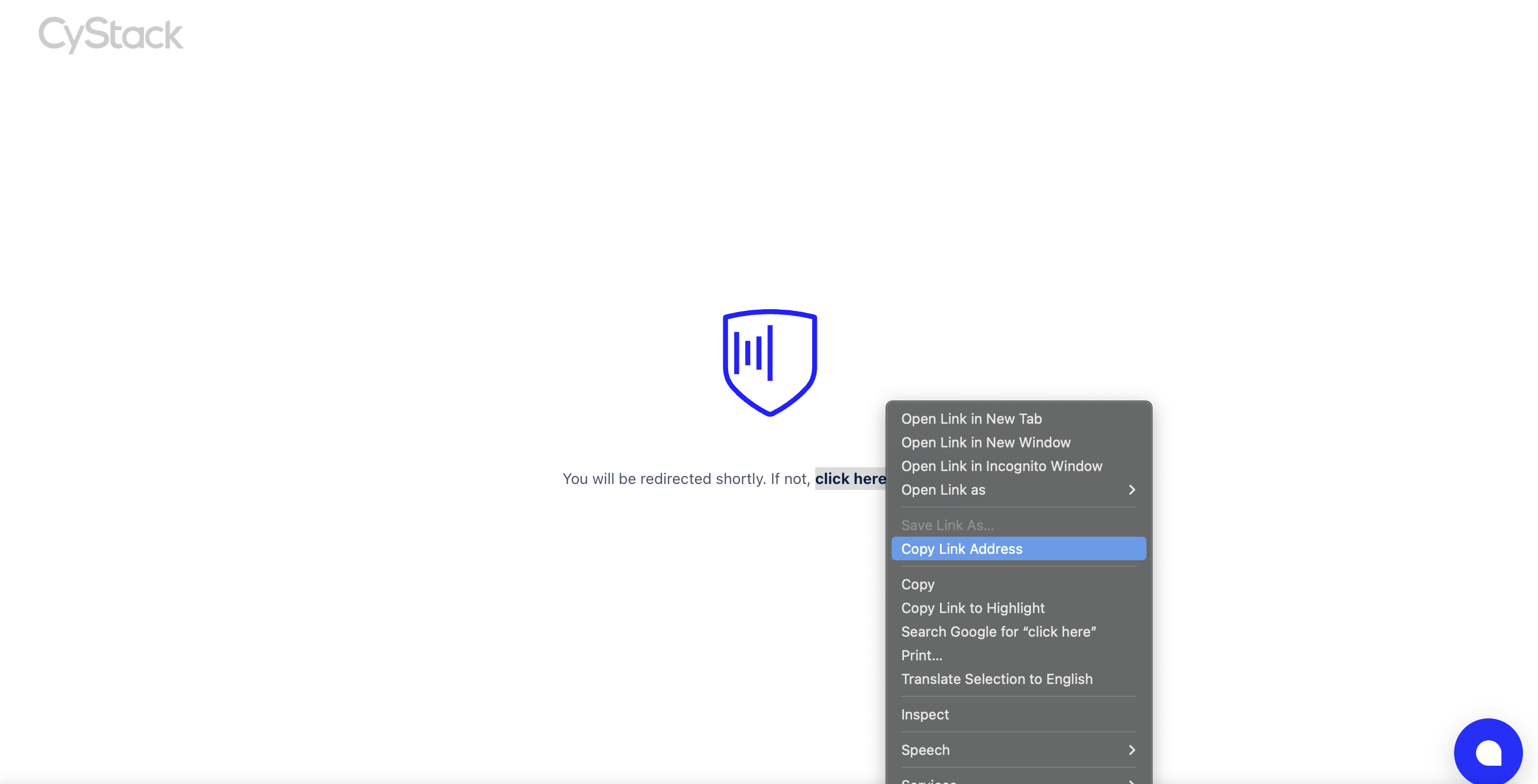
The administrator copies and sends the agent installation link to the user of the device requiring management.
The employee runs the installation file on their device.
After installation, device information appears on the admin dashboard. The employee logs into the agent via SSO or email.
The administrator can begin monitoring and establishing policies for that device and employee.
1. Install the agent on the device
- Windows
- macOS
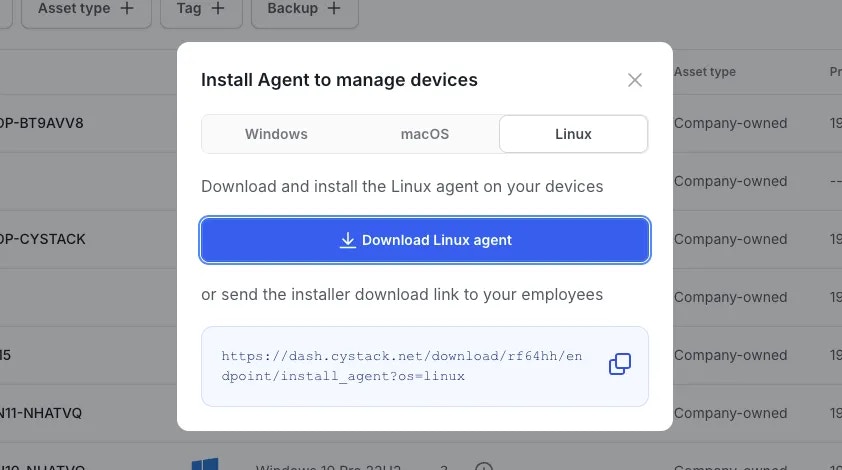
- Linux
Access the device management page on the dashboard.
Select the Windows installer:
Install agent button and select the Windows operating system. You can:- Click the
Downloadbutton to get the installer file, or - Click the
Copybutton to copy the link and send it to other employees in the organization.
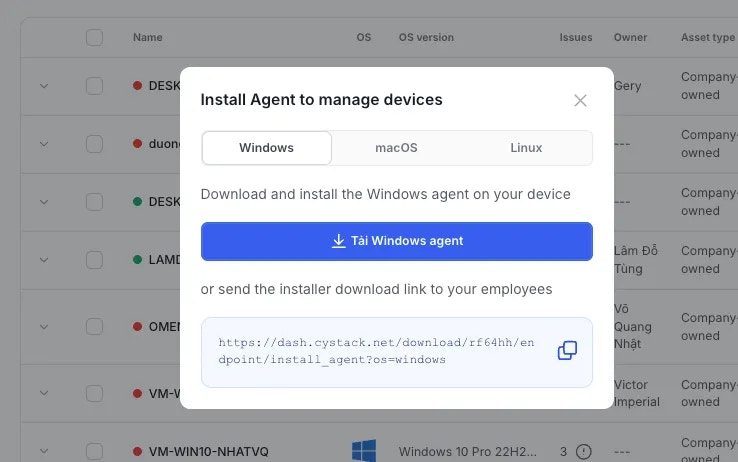
Download the installer file to the target device.
Double-click the file to start the installation process.
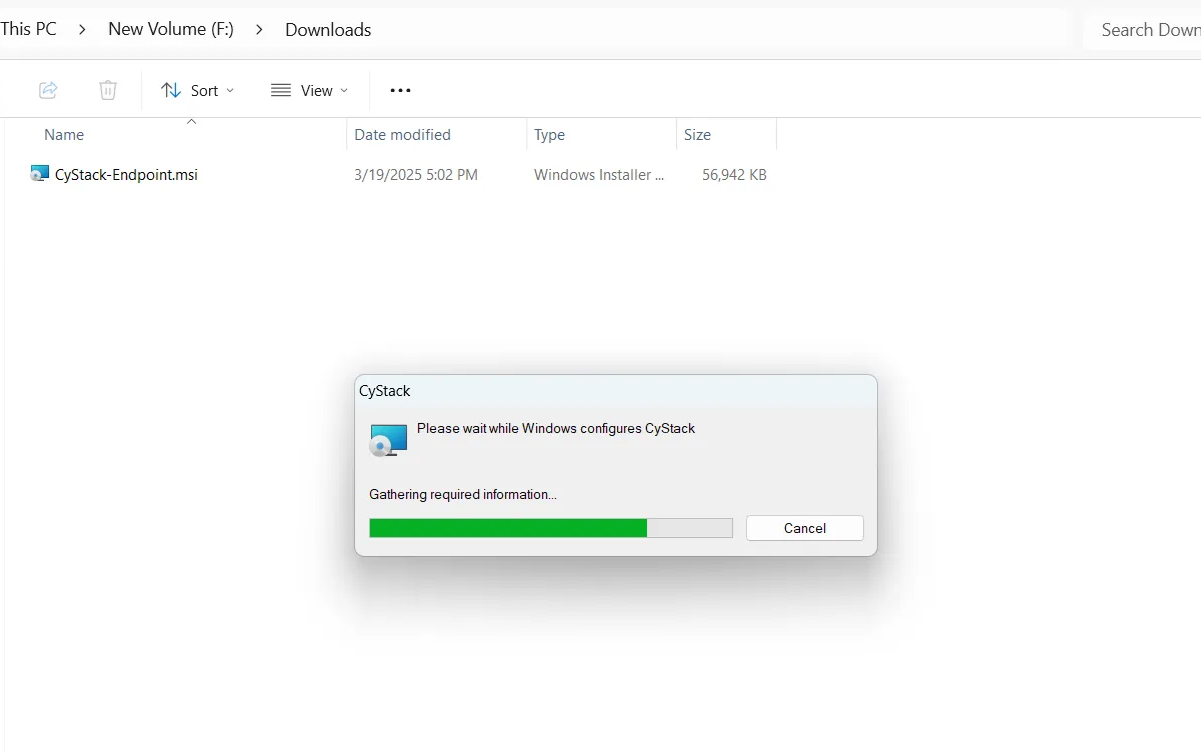
Once installed, the application will automatically launch in the background.

2. Log in and authenticate devices
- On devices with a graphical interface (GUI)
- On devices without a graphical interface


Users can choose one of two login methods:
- SSO (Single Sign-On): Quick login using a Google or GitHub account linked to the organization’s email.
- Email:
- Enter the organization email address.
- Receive a one-time login link via email.
- Click the link to verify.

3. Completion and connection check
Upon successful login, the device will be added to the management list on the dashboard.
The Agent will create a secure drive on the user's device to store organization data:
- For new users: A new drive will be created.
- For users who previously used CyStack Endpoint on another device and have a backup: You can opt to restore data from the backup or set up a fresh drive.
- On Windows: After successfully creating the new drive, you must save the BitLocker recovery key for future data recovery.
4. Create a non-admin local user
Administrators can create a standard local user account (without admin privileges) on the managed device for employee use. This account has restricted system access and disallows the installation of unauthorized software or changes to security configurations, ensuring the employee complies with device policies. Follow the steps below to create a non-admin local user:- Windows
- macOS
The administrator uses the device directly or accesses it remotely.
Provide the new username and password to the employee.
Subsequently, the administrator can modify the passwords of existing admin users (if necessary) to prevent the employee from using privileged accounts on the device.