

Guide to Uninstalling CyStack Agent
When a device no longer requires management (e.g., hardware failure, device replacement, employee offboarding, or subscription expiration), Administrators can uninstall the Agent directly via the Management Dashboard. To uninstall the Agent, please follow these steps:1
Navigate to the Devices section on the navigation bar.
2
Locate and select the device you wish to uninstall.
3
Click the options icon ⋮ corresponding to that device.
4
Select Uninstall.
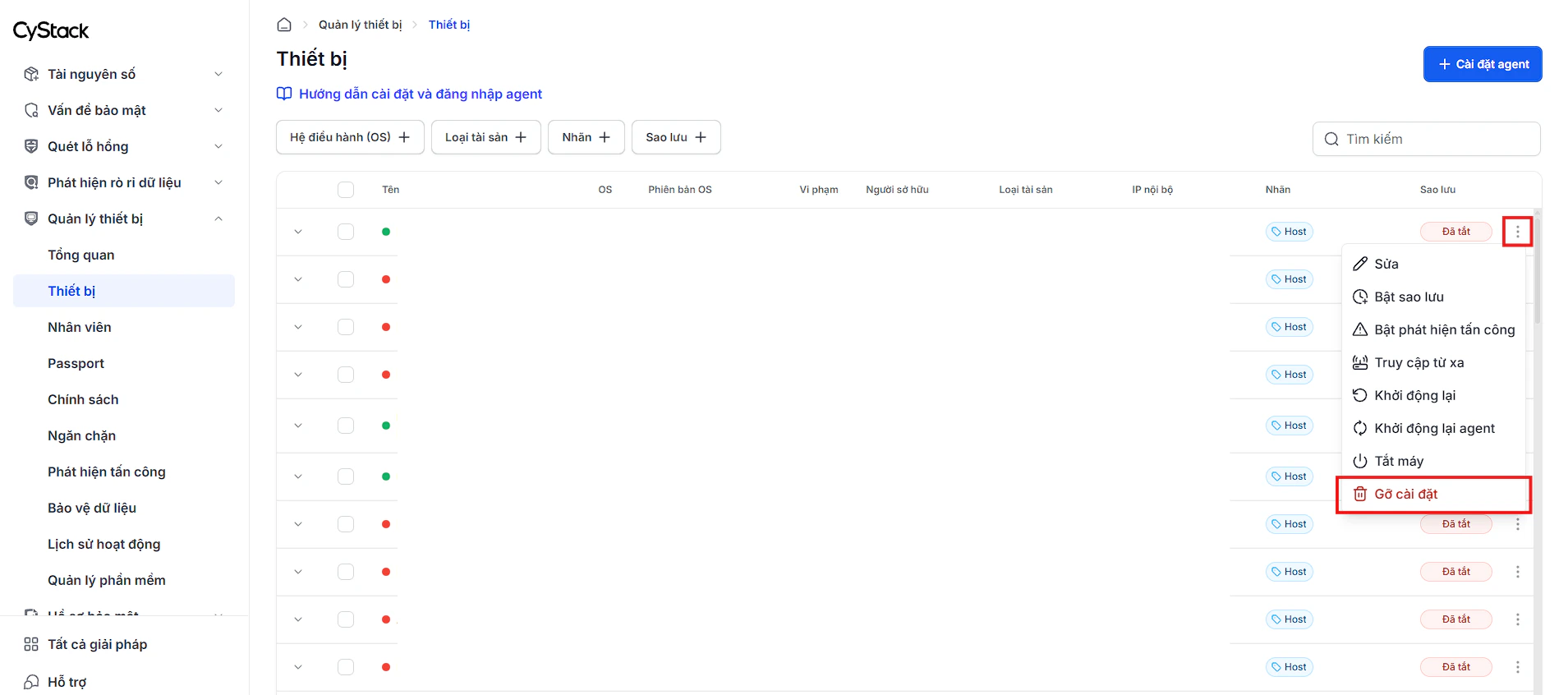
5
Confirm the action in the pop-up notification. The system will then send an uninstallation command to the target device.
If the device is currently offline, the uninstallation command will be executed as soon as the device reconnects to the Internet.
Important notes after a device is removed from the Workspace:
- The device will stop receiving management policies from the system.
- All share links and preview links created from that device will be deleted and will no longer be accessible.