- Prevent employees from connecting external USB drives to copy sensitive documents and transfer them outside the organization.
- Block unauthorized USB drives that may contain malware, preventing potential virus infections on corporate devices.
Block all previous data transfer channels.
Instruct employees on how to generate document sharing links. Administrators can enable an approval requirement mode, meaning employees can only share links when approved by an administrator.
Block All Data Transfer Channels
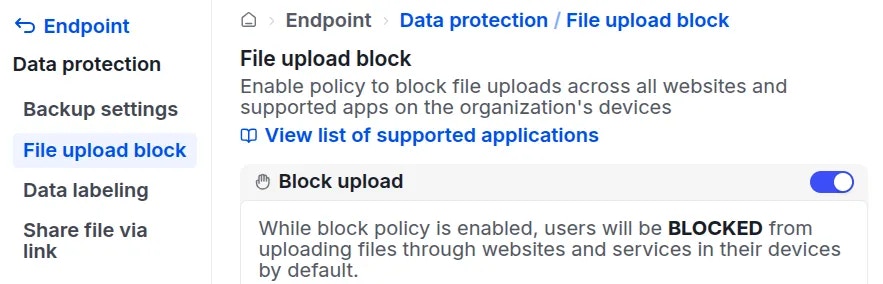
To prevent direct document transfers via web browsers or desktop applications, the administrator must navigate to Endpoint Data protection File upload block turn on theUpload block switch. Once enabled, employees will be restricted from sending files through any channels.
Guide to Sharing Documents via Links
Currently, employees can share documents located within the secure Drive created by the Endpoint software agent.On the administrative side, there are two approaches to managing how employees generate sharing links:
Allow employees to share documents via links freely. Control is maintained post-sharing by auditing logs, which track which files were shared, when they were shared, and how many times the links were accessed.
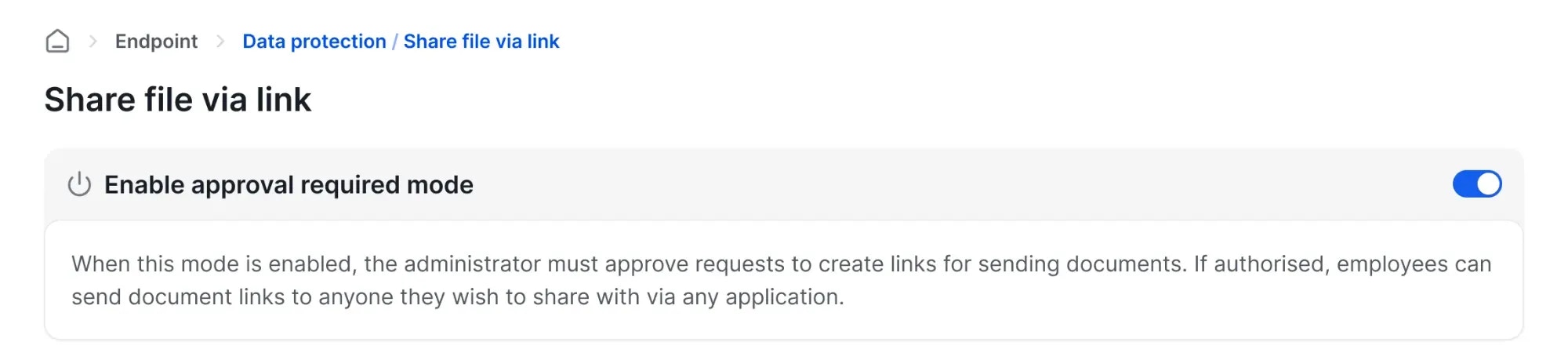
Enable Approval Required mode: When this mode is active, employees must send a request from their device, and a link can only be generated after administrator approval. See the instructions below to enable this mode.
Enable Link Approval Mode
Guide to Creating a Sharing Link on Endpoints
Administrators can provide the following instructions to employees to help them start generating document sharing links:- Windows
- macOS
Access the document within the drive created by the Endpoint agent on the device.
Right-click on the document you wish to share.
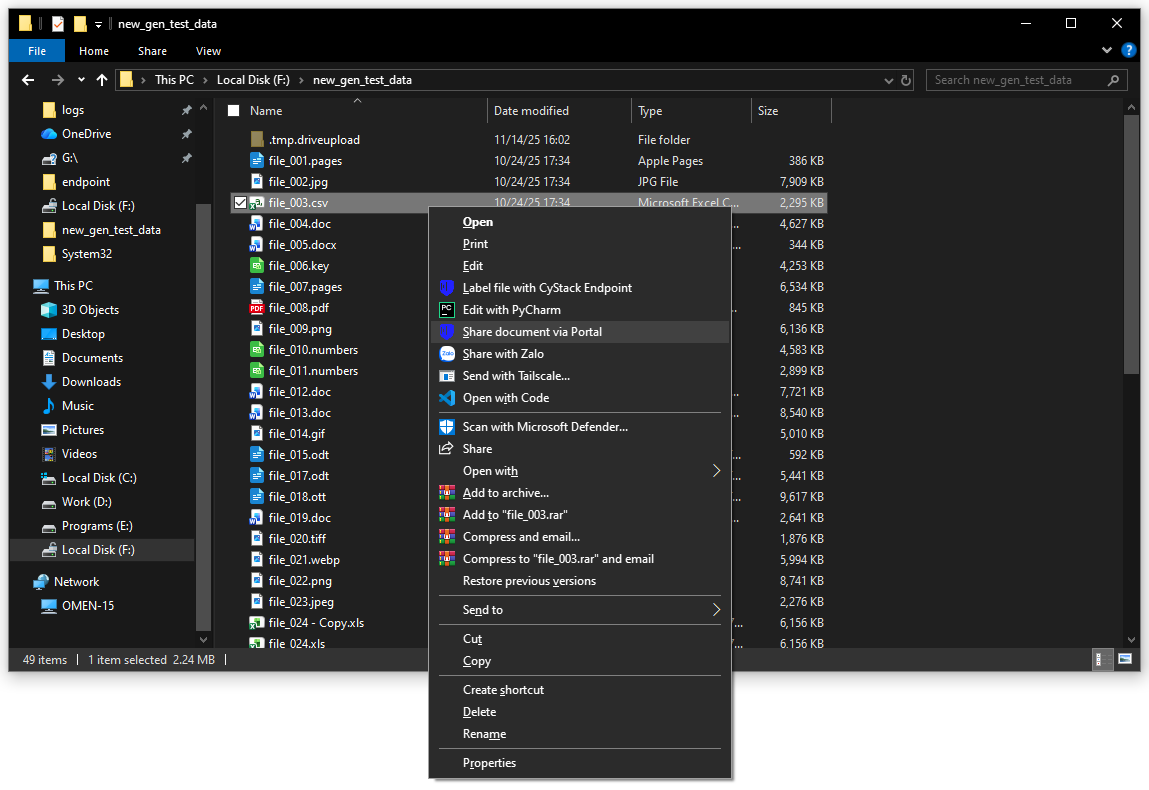
A notification pop-up will appear:
- If administrator approval is not required: The file link will be generated automatically and displayed immediately on the pop-up. By default, the link expires after 30 days.
- If administrator approval is required: The user will see a notification stating that the request has been sent to the administrator.
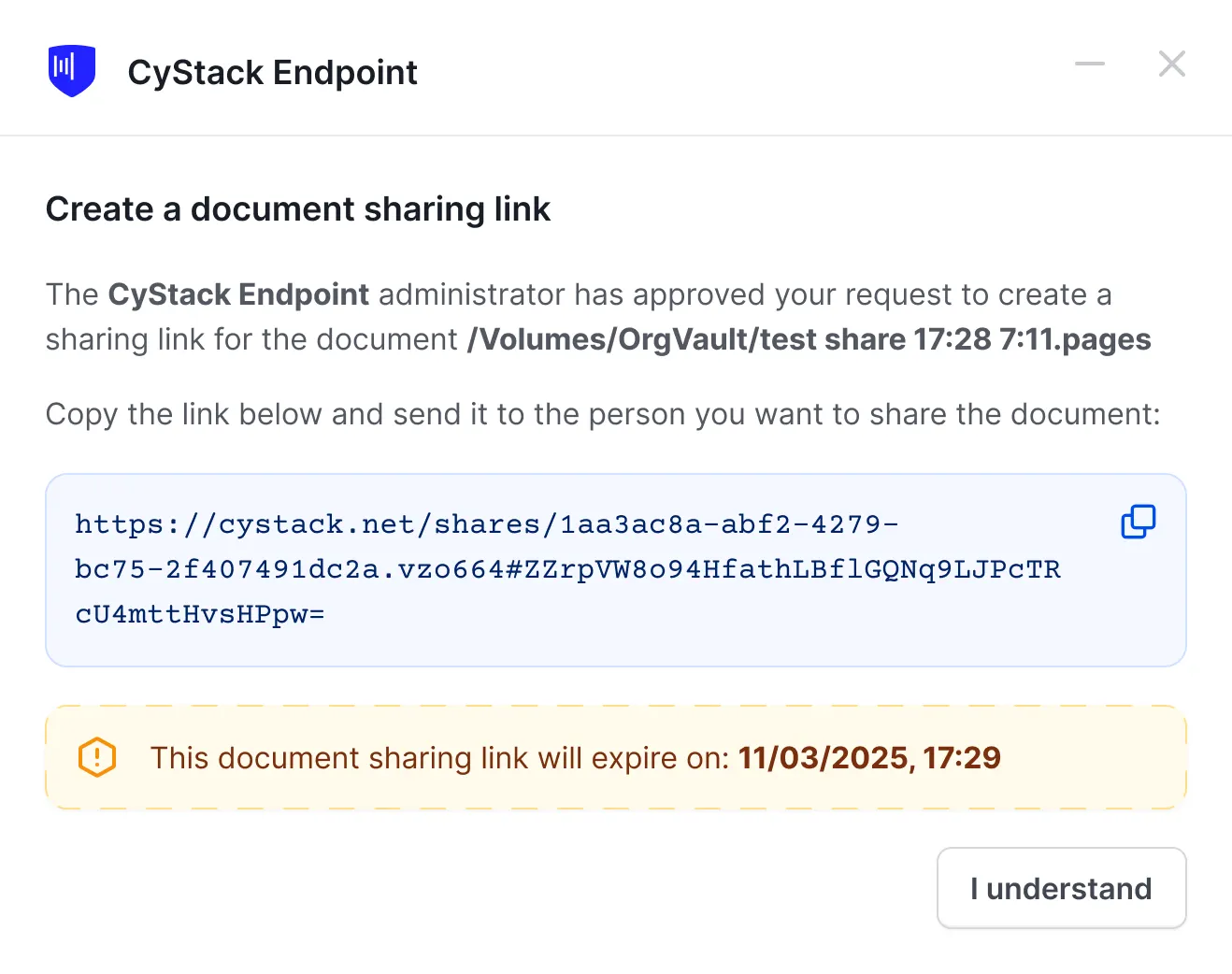
The employee can copy this link and send it to the recipient via any platform.
Approving Document Links (Admin)
If the Approval required mode is enabled, the administrator must approve file transfer requests.When an employee creates a link request, the administrator will receive an email notification:
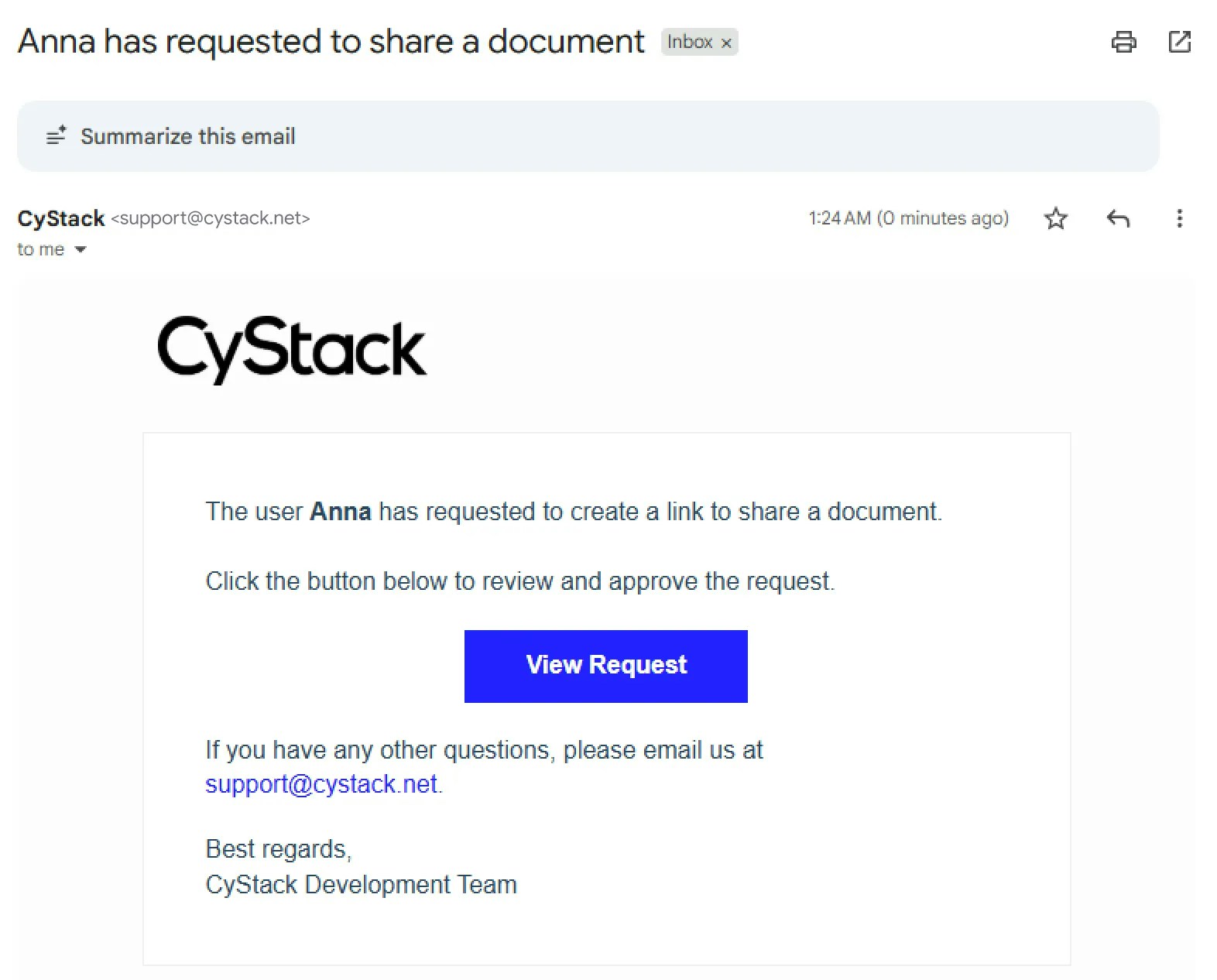
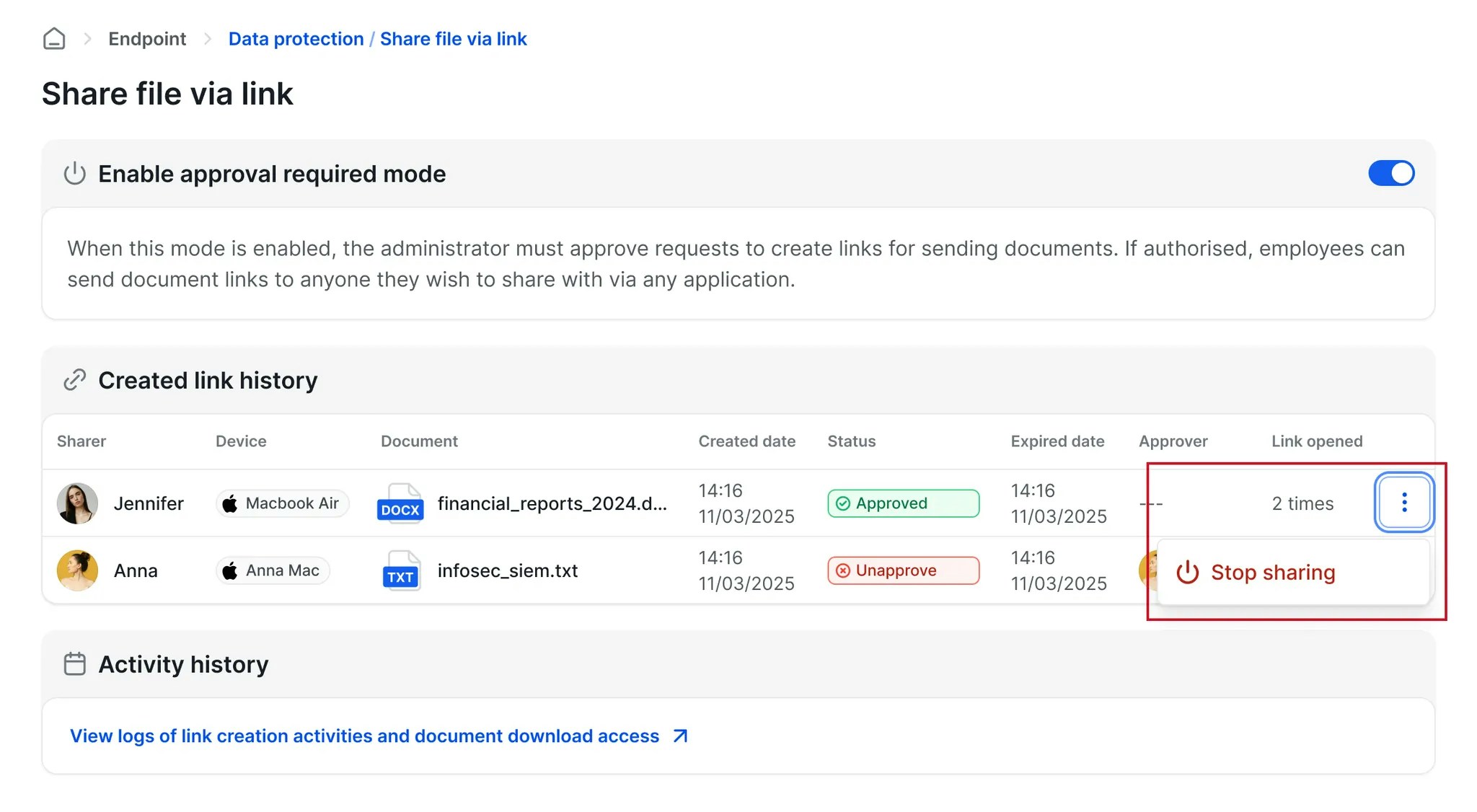
Reject.Revoking Document Sharing
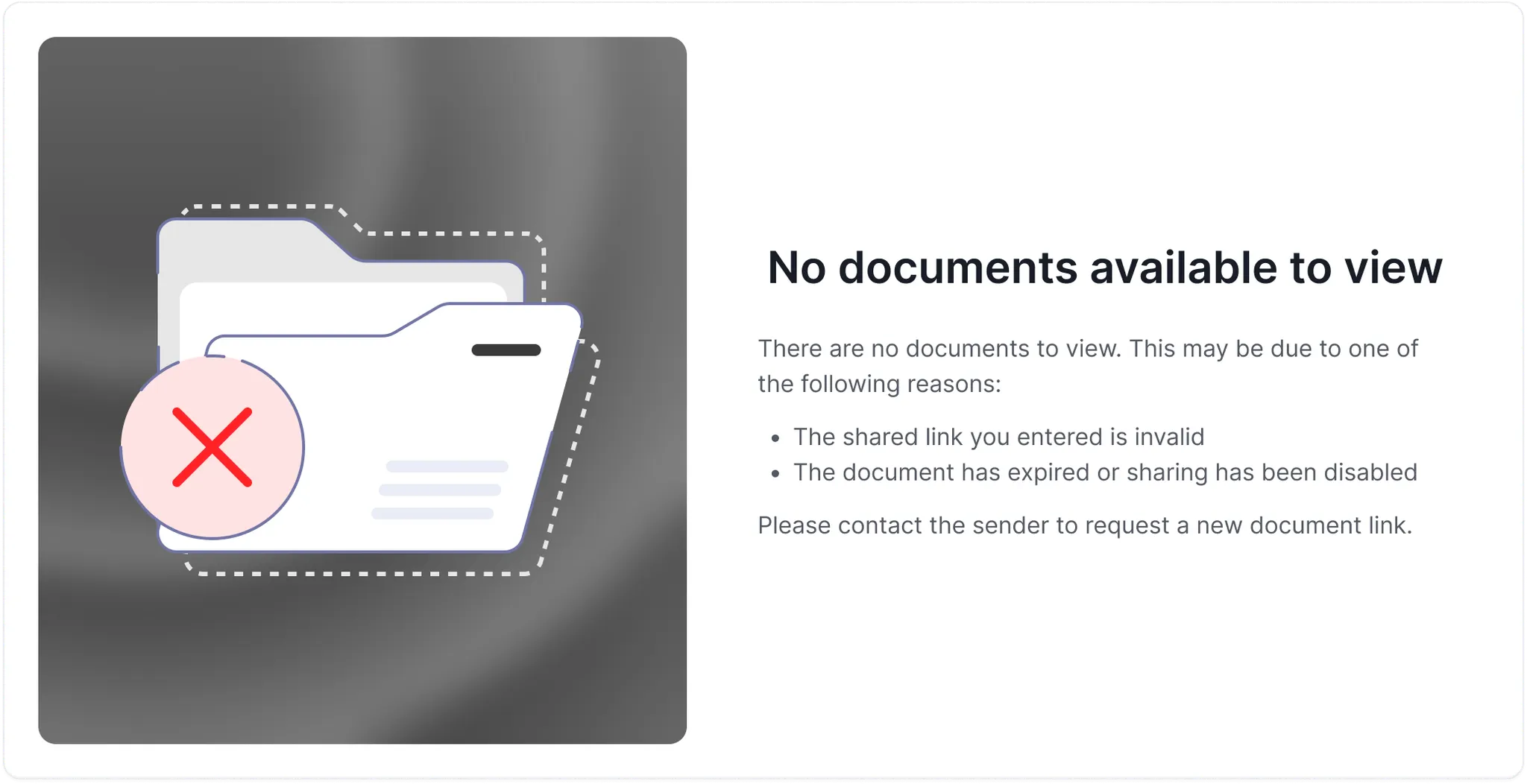
For documents that have already been shared, administrators can stop sharing at any time via the admin portal by following these steps: