

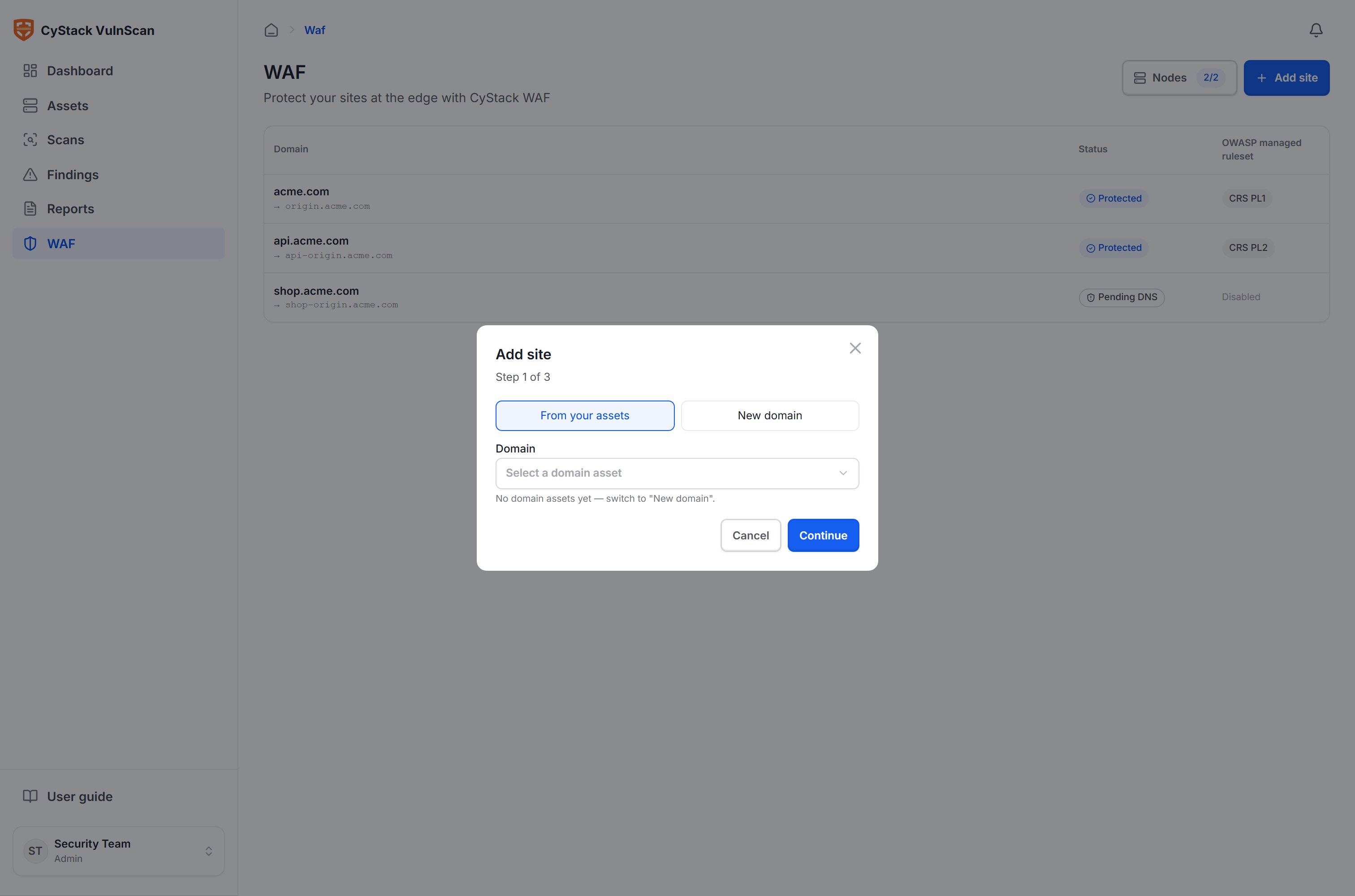
Add a site
Open the WAF section and select Add site. The wizard has three steps:Step 1 — Choose a domain
Select a domain already in your asset list, or enter a new domain. The system validates the domain format and detects duplicates. The example used throughout this documentation isacme.com.
Step 2 — Configure the origin
VulnScan resolves the domain’s current DNS records to suggest an origin. The origin is where the node will forward valid requests — typically the application’s internal IP or hostname, for exampleorigin.acme.com.
- You can edit or add multiple origins manually.
- The Test origin button attempts a connection to the origin from the console and reports the protocol (HTTP/HTTPS), status code, and certificate validity.
- The system warns you if the domain is currently being proxied through another service, to avoid creating a loop.
Step 3 — Point DNS and verify
The console provides a managed domain in the formvs-<code>.cystack.io (for example vs-7f3a9.cystack.io). Update your domain’s DNS to route traffic through the edge nodes, using one of two methods:
After updating DNS, select Verify. VulnScan resolves the domain and checks that it points to the node’s IP (via the A record) or to the managed domain (via the CNAME). When verification succeeds:
- The site moves to the Protected state and unlocks rule configuration.
- The domain is added to the asset list if it is still within the license scope.
- The system automatically re-checks periodically while a site is unverified.
Site status
The site list shows the aggregated operational status of each domain: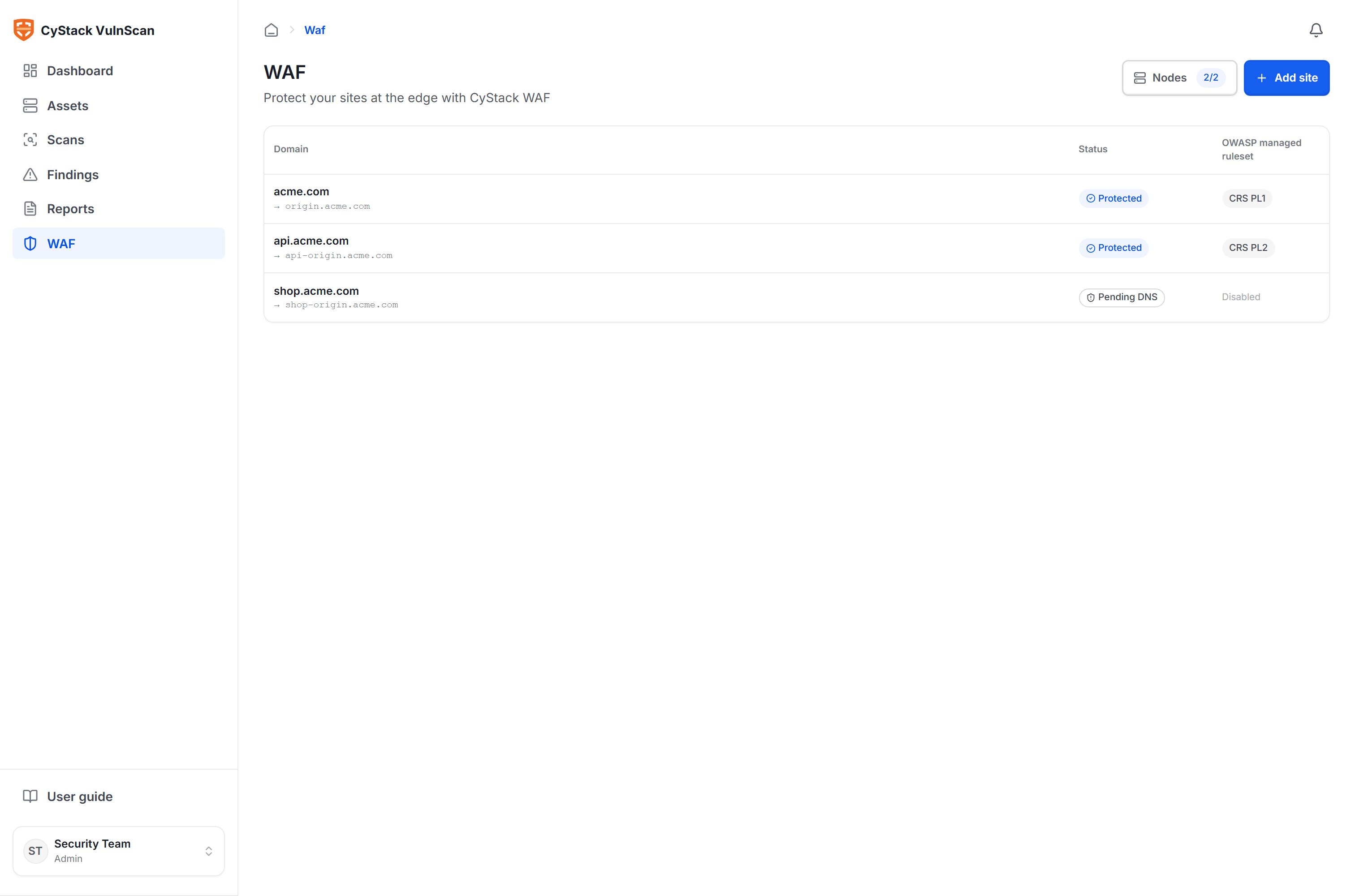
The ruleset column indicates which paranoia level of the managed OWASP ruleset the site has enabled (for example
CRS PL1), or whether it is turned off.
Site configuration
Open a site and go to the Settings section to adjust: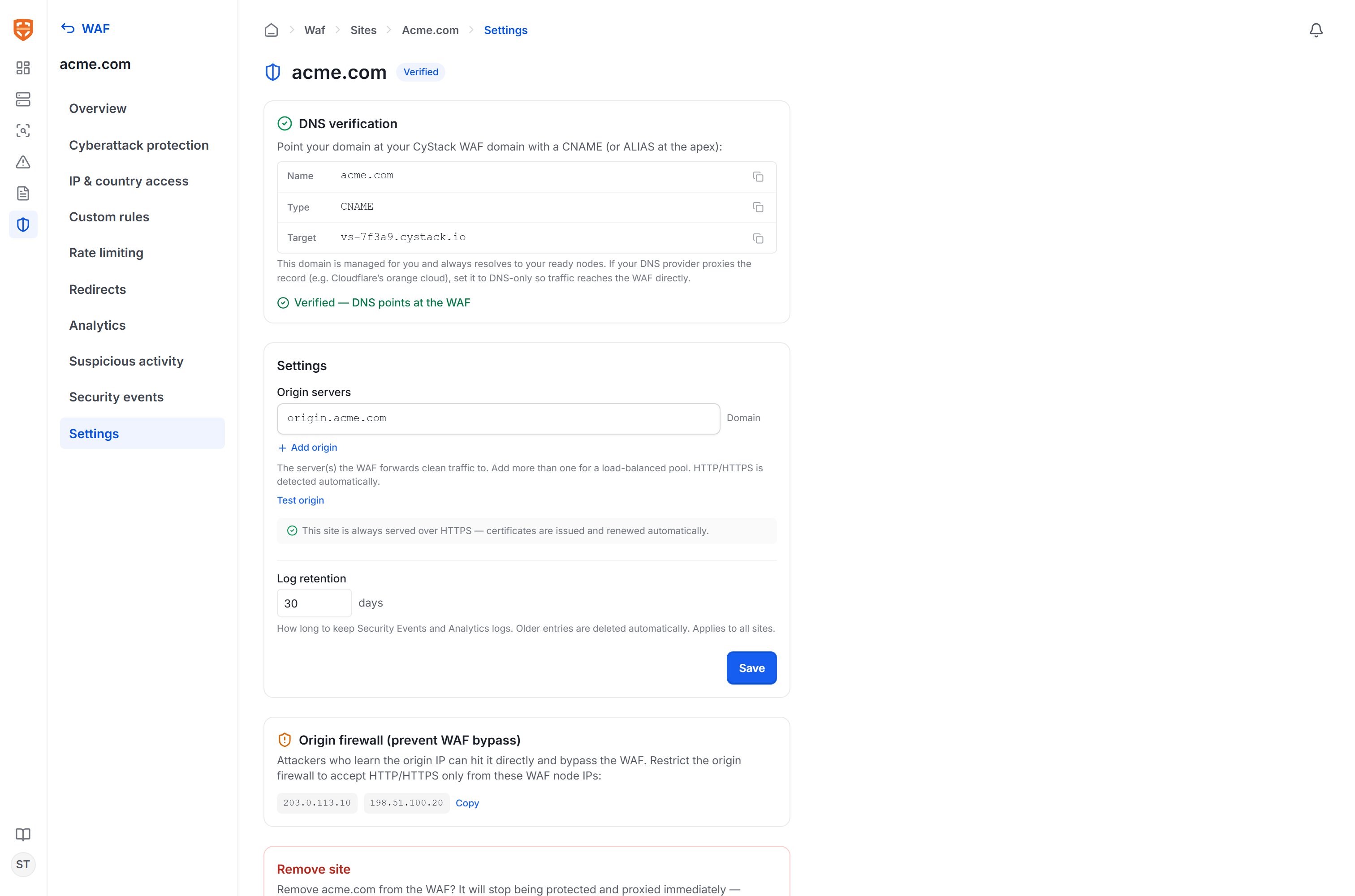
- Domain: changing it requires re-verification.
- Origin: add or remove origin servers.
- Enable/disable site: pause protection without deleting the configuration.
- TLS: choose how HTTP/HTTPS is handled.
- Re-verify: check DNS manually and view the most recent verification time along with node status.
After verification
Once a site is in the Protected state, continue with:- Protection rules — enable the OWASP ruleset and add custom rules.
- Access & traffic control — block by IP/country, rate limiting, redirects.
- Monitoring & analytics — track events and traffic.