

Site overview
The Overview page for each site summarizes its protection status and recent traffic.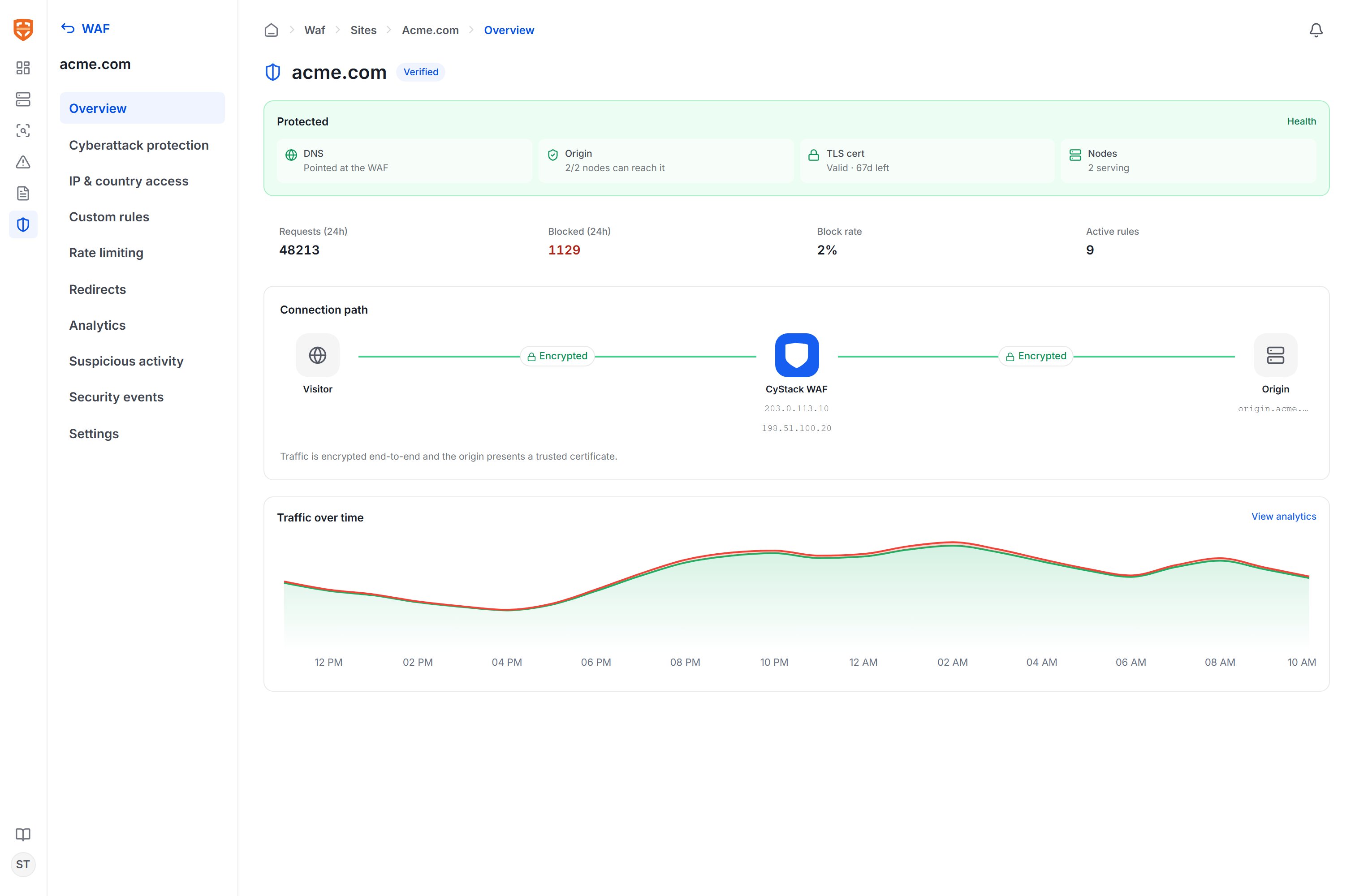
- Health cards check layer by layer: DNS is pointed to the WAF, the origin is reachable, the TLS certificate is valid (with days remaining), and a node is serving.
- 24-hour metrics: total requests, blocked requests, block rate, and number of active rules.
- Connection diagram: illustrates the Client → CyStack WAF → Origin path along with encryption status.
- Traffic chart: allowed and blocked traffic over time.
Security events
The Security events page lists requests blocked or logged by the WAF, newest at the top.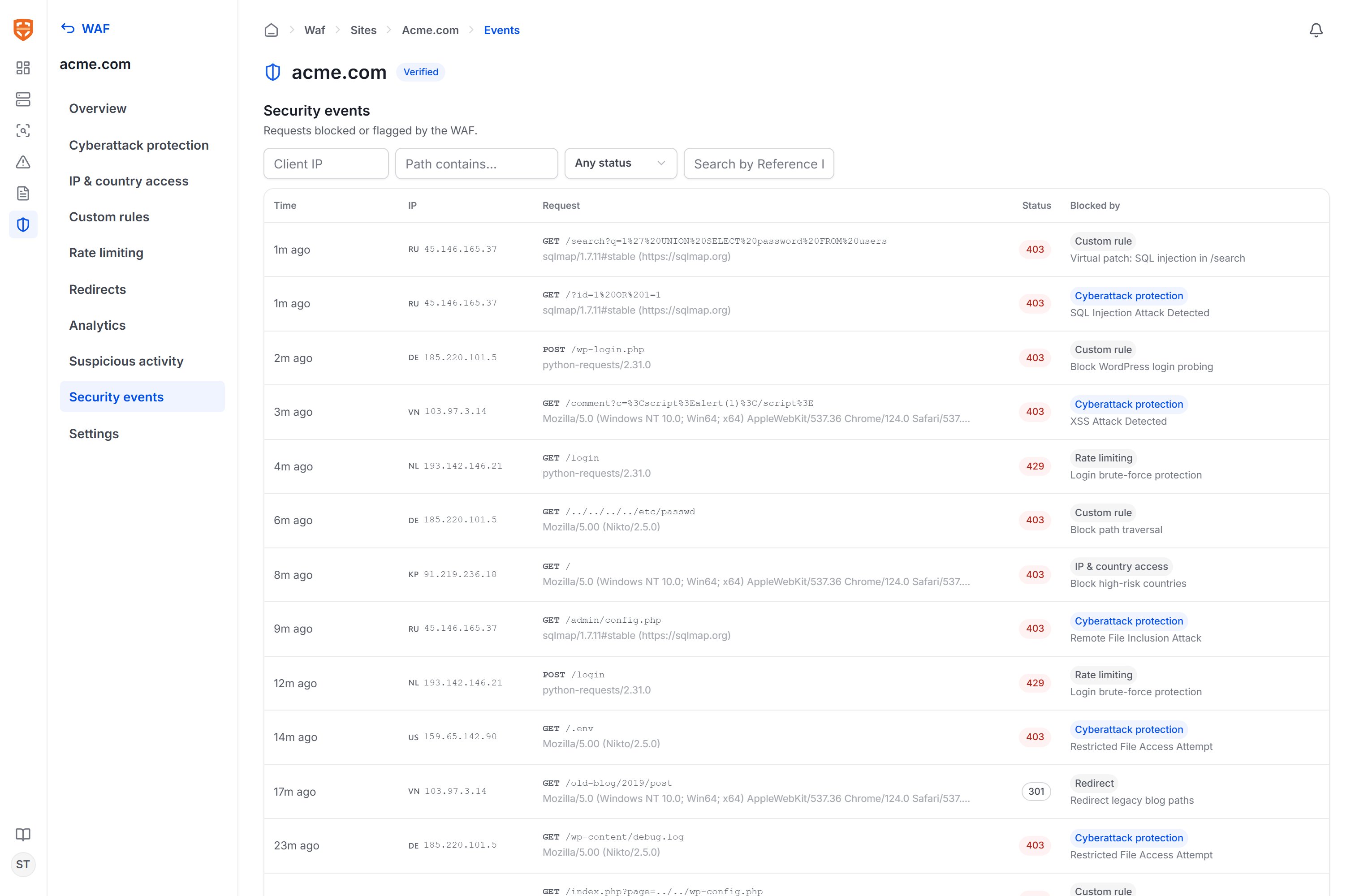
Filters let you narrow by IP, path, status code, and Reference ID (the reference code shown to end users when they are blocked). Open an event’s details to see the full host, country, action, matched rule code, message, and User-Agent, along with a link to the corresponding rule configuration page.
Suspicious activity
The Suspicious activity page analyzes recent traffic and automatically flags IPs that show signs of attack but may not yet have been blocked — for example, scanning below the block threshold.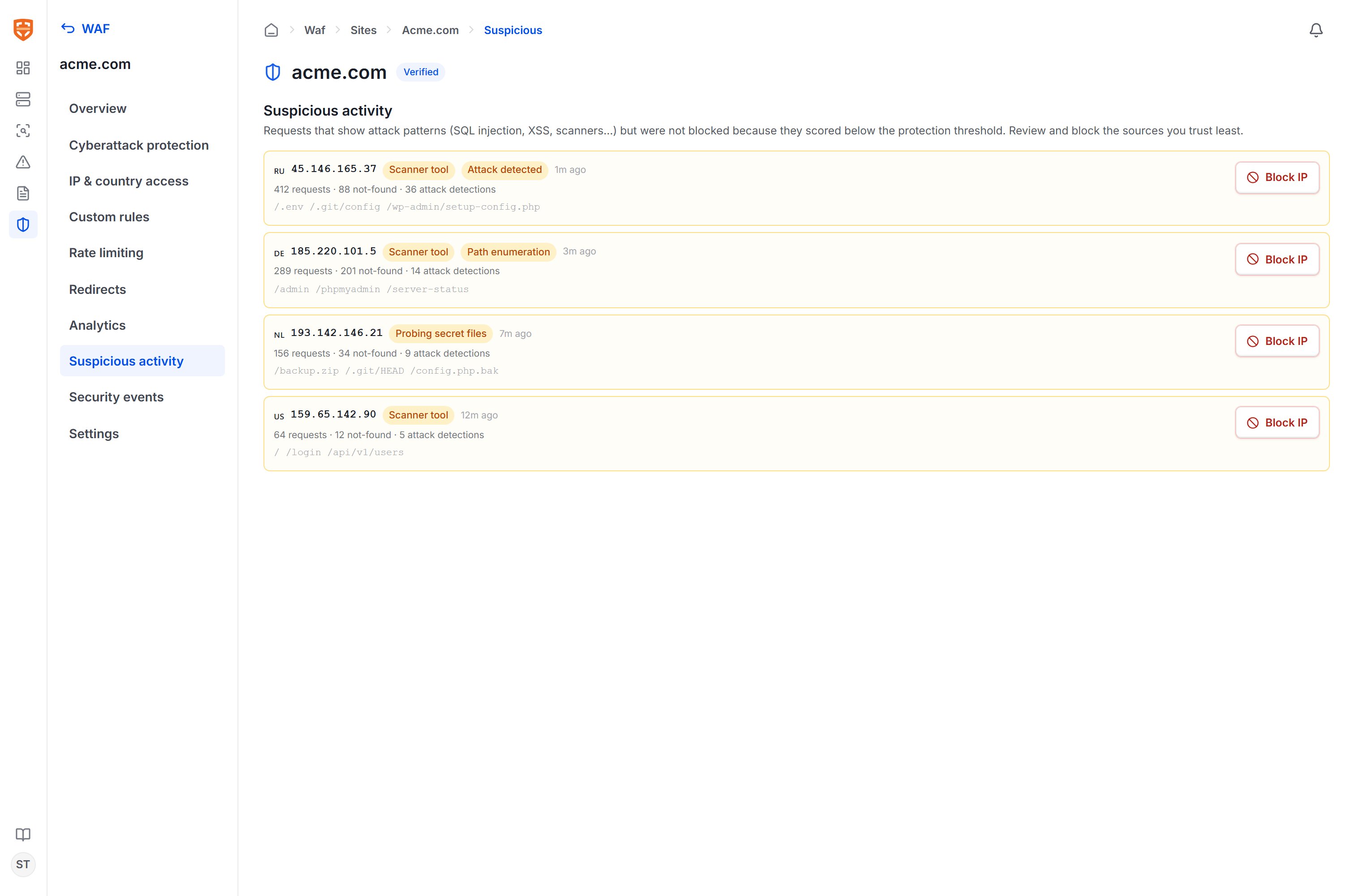
- IP and country along with reason labels: scanning tool, attack detected, sensitive path scanning, enumeration.
- Statistics: total requests, number of 404 responses, and number of detected attacks.
- Sample paths the source has tried (for example
/.env,/.git/config,/phpmyadmin). - A Block IP button to immediately create a rule blocking that IP.
Analytics
The Analytics page aggregates all traffic passing through the WAF over a 24-hour, 7-day, or 30-day window.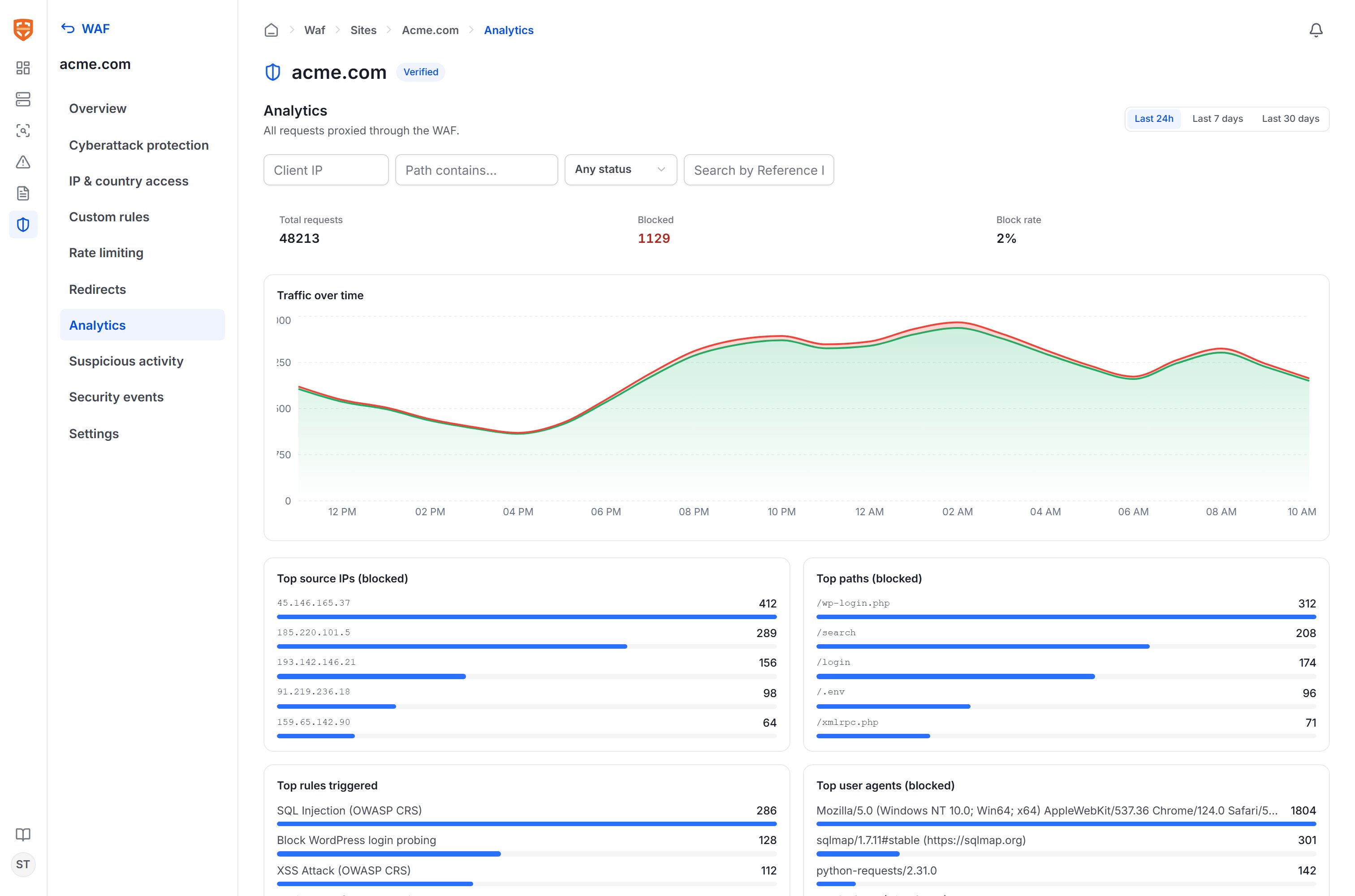
- Aggregate metrics: total requests, total blocked, and block rate.
- Traffic chart: allowed and blocked traffic over time.
- Top lists: top source IPs, most-blocked paths, most-triggered rules, and top User-Agents.
Retention and notifications
- Event retention can be configured in the WAF settings (for example, 30 days). Events older than the threshold are cleaned up automatically.
- Email notifications are sent when a site is verified successfully, when a new rule is created (including AI-generated virtual patches), and when a site loses serviceability (no ready node remains or the origin is down). Configure email in the workspace settings.
Recommended monitoring workflow
- Watch the Overview to ensure the health cards stay green.
- Review Security events regularly, especially after tightening rules, to catch false blocks.
- Handle Suspicious activity: block clear scanning sources.
- Use Analytics to identify attack trends and adjust protection rules accordingly.