A good scan starts before the Start scan button. This page explains how to choose scope, prepare authentication, understand scan options, and avoid common configuration mistakes.

Before You Scan

Confirm these items before scanning a production target:
ItemWhat to Confirm
AuthorizationThe organization owns the target or has explicit written permission to test it.
License scopeThe target is covered by the active VulnScan license.
Network pathThe VulnScan host can reach the target from the intended network location.
Target toleranceThe target owner understands that security testing can create traffic, logs, and alerts.
AuthenticationA dedicated test account, cookie, token, header, or Basic Auth credential is ready if required.
NotificationMail delivery is configured if the team expects scan-completed or report-ready emails.
ReportingThe team knows whether it needs CSV, JSON, PDF, or all three.

Choose the Right Scope

ScopeUse WhenWatch For
Single URLYou want focused testing for one application entry point.May miss sibling applications on other subdomains.
Root domainYou want discovery across a business domain such as acme.com.Review discovered subdomains before broad testing.
SubdomainYou want repeatable testing for one application such as app.acme.com.Use authenticated context if most functionality is behind login.
IP addressYou want network service and exposed-component checks for one host.Web applications behind virtual hosting may require hostname-based scans.
CIDR rangeYou want inventory and service exposure checks across a small owned network block.Start with a small range and confirm rate limits.
Target fileYou need repeatable CLI automation for many known targets.Keep the file under change control and remove decommissioned targets.

Web UI Workflow

  1. Open Assets.
  2. Add or select the asset you want to assess.
  3. Review the asset detail page for discovery signals.
  4. Choose Start scan.
  5. Confirm the scan name and target list.
  6. Enable subdomain coverage only when the domain and discovered hosts are in scope.
  7. Add authentication context if the application requires login.
  8. Start the scan and monitor progress on the scan detail page.
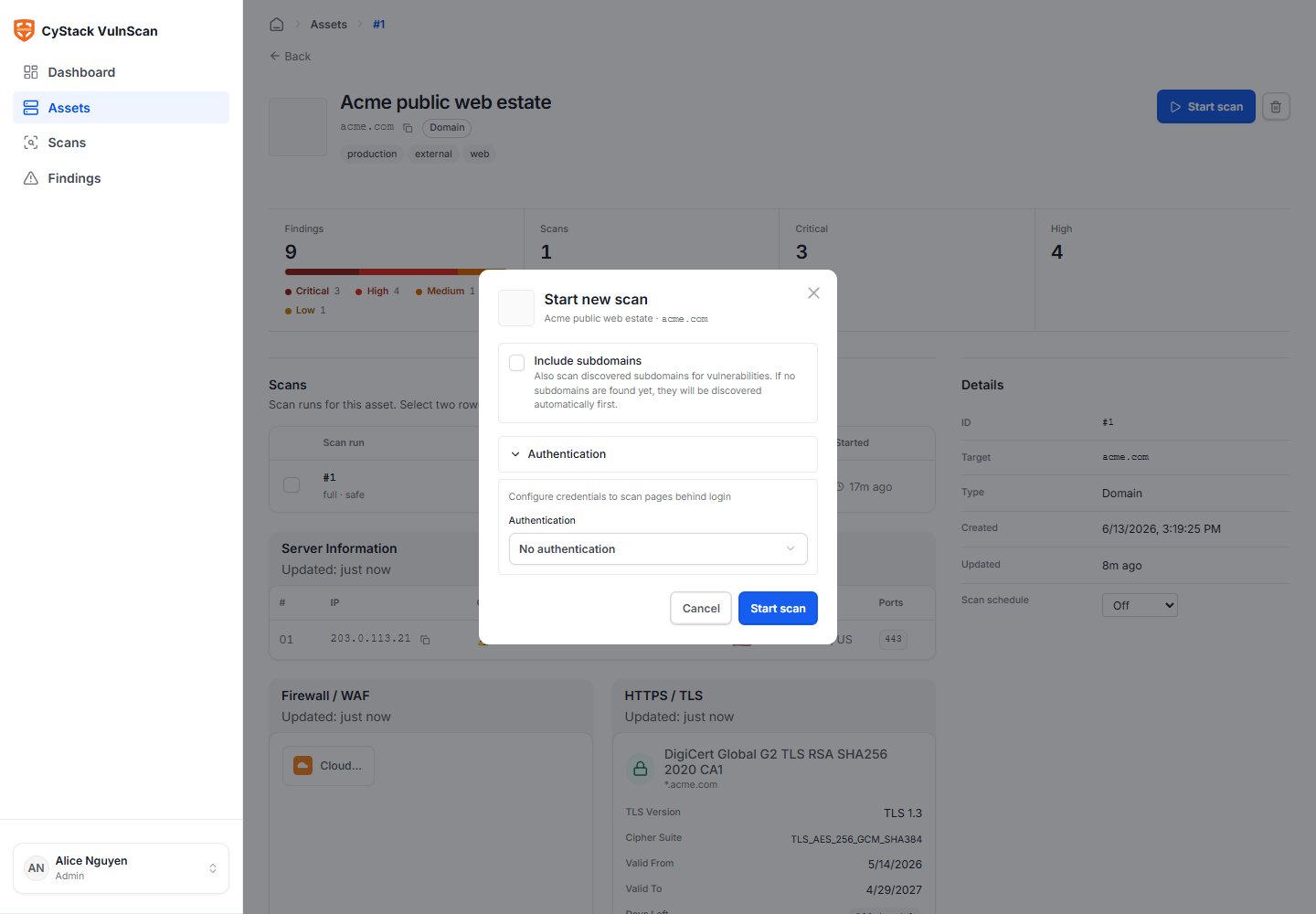
Start scan

Authentication Options

OptionUse CaseExample
CookieBrowser application after login.session=REDACTED; tenant=acme
Custom headerAPI token, bearer token, tenant routing, staging gateway, or internal routing header.Authorization: Bearer REDACTED
Basic AuthStaging site or internal application protected by HTTP Basic Authentication.scanner:REDACTED
For step-by-step authenticated scan guidance, see Authenticated Scanning.

CLI Equivalents

Use CLI when the scan needs to run from automation, a scheduled task, CI/CD, or a repeatable analyst workflow.
GoalCommand Pattern
Scan one applicationvulnscan scan --target https://app.acme.com --output ./reports --format json,csv
Scan multiple targetsvulnscan scan --target https://app.acme.com --target https://api.acme.com --output ./reports --format json,csv
Scan from filevulnscan scan --target-file ./targets.txt --output ./reports --format json,csv
Include subdomainsvulnscan scan --target acme.com --include-subdomains --output ./reports --format json,csv
Cookie scanvulnscan scan --target https://portal.acme.com --cookie "session=REDACTED" --output ./reports --format json,csv
Header scanvulnscan scan --target https://api.acme.com -H "Authorization: Bearer REDACTED" --output ./reports --format json,csv
Basic Auth scanvulnscan scan --target https://staging.acme.com --basic-auth "scanner:REDACTED" --output ./reports --format json,csv
Vietnamese PDFvulnscan scan --target https://app.acme.com --output ./reports --format pdf --lang vi
See CLI Reference for full command details.

Scan Output

VulnScan stores standard Web UI, CLI, and scheduled scans in the workspace database. The scan source remains visible for audit and troubleshooting. Supported export formats:
FormatUse For
CSVRemediation tracking, spreadsheets, ticket import, and vulnerability registers.
JSONSIEM, SOAR, custom integration, evidence processing, and data pipelines.
PDFExecutive summaries, customer-facing reports, audit packages, and management review.
PDF exports run as background jobs. Closing the browser does not cancel the export.

Scheduling Strategy

Use recurring scans when the target is important enough to monitor continuously. Recommended starting point:
Asset TypeSuggested Cadence
Internet-facing production applicationWeekly or after major releases.
Critical customer portalWeekly plus manual scan after high-risk changes.
Staging application in CI/CDOn demand during release validation.
Root domain discoveryWeekly or monthly, depending on asset change rate.
Small public CIDR rangeMonthly, or after infrastructure changes.
Avoid scanning large scopes during peak business traffic unless the target owner has approved it.

Configuration Checklist

Before clicking Start scan, verify:
  • The scan target exactly matches the intended hostname, URL, IP, or CIDR.
  • The target is inside the active license scope.
  • The asset detail page shows the expected discovery context.
  • Authenticated applications have a valid test session or token.
  • The scan source and output requirements are clear.
  • The team knows who will triage Critical and High findings.
  • PDF export notifications are configured if stakeholders need a downloadable report later.

Common Mistakes

MistakeImpactFix
Scanning only an IP for a virtual-hosted applicationThe scanner may miss hostname-specific web content.Scan the real hostname or URL.
Using an expired cookieAuthenticated pages are missed.Re-create the session before scanning.
Running a broad root-domain scan firstToo much data before owners understand scope.Start with discovery, review assets, then expand.
Ignoring WAF/CDN signalsFindings may represent edge behavior rather than origin behavior.Review WAF/CDN context in the asset detail page.
Exporting only PDF for remediationEngineering teams lose structured fields.Export CSV or JSON alongside PDF.