> ## Documentation Index
> Fetch the complete documentation index at: https://docs.cystack.net/llms.txt
> Use this file to discover all available pages before exploring further.
# Workspace Settings
> Configure members, mail delivery, license details, and personal settings
Each CyStack VulnScan instance is treated as one workspace. Settings are separated into personal settings and workspace settings so users can manage their own profile without changing organization-wide behavior.
## Personal Settings
Personal settings are available from the user menu.
Use them to manage:
* Display name.
* Email address visibility.
* Interface language.
* Password.
* Logout.
The personal detail screen shows the user's name and email for day-to-day identification. Internal user identifiers are not required for normal product usage.
## Workspace Settings
Workspace settings are available to administrators. They affect all users and scans in the instance:
* Members and roles.
* Mail provider and sender configuration.
* License status, limits, activation, and allowed targets.
* Workspace-level scan and report behavior where supported.
## Members
VulnScan supports two workspace roles:
| Role | Permissions |
| ------ | ----------------------------------------------------------------------------------------------------------------------------------------------------- |
| Admin | Manage members, mail settings, license settings, assets, scans, findings, and reports. |
| Member | Use assigned workspace functionality such as viewing assets, running scans, reviewing findings, and exporting reports according to deployment policy. |
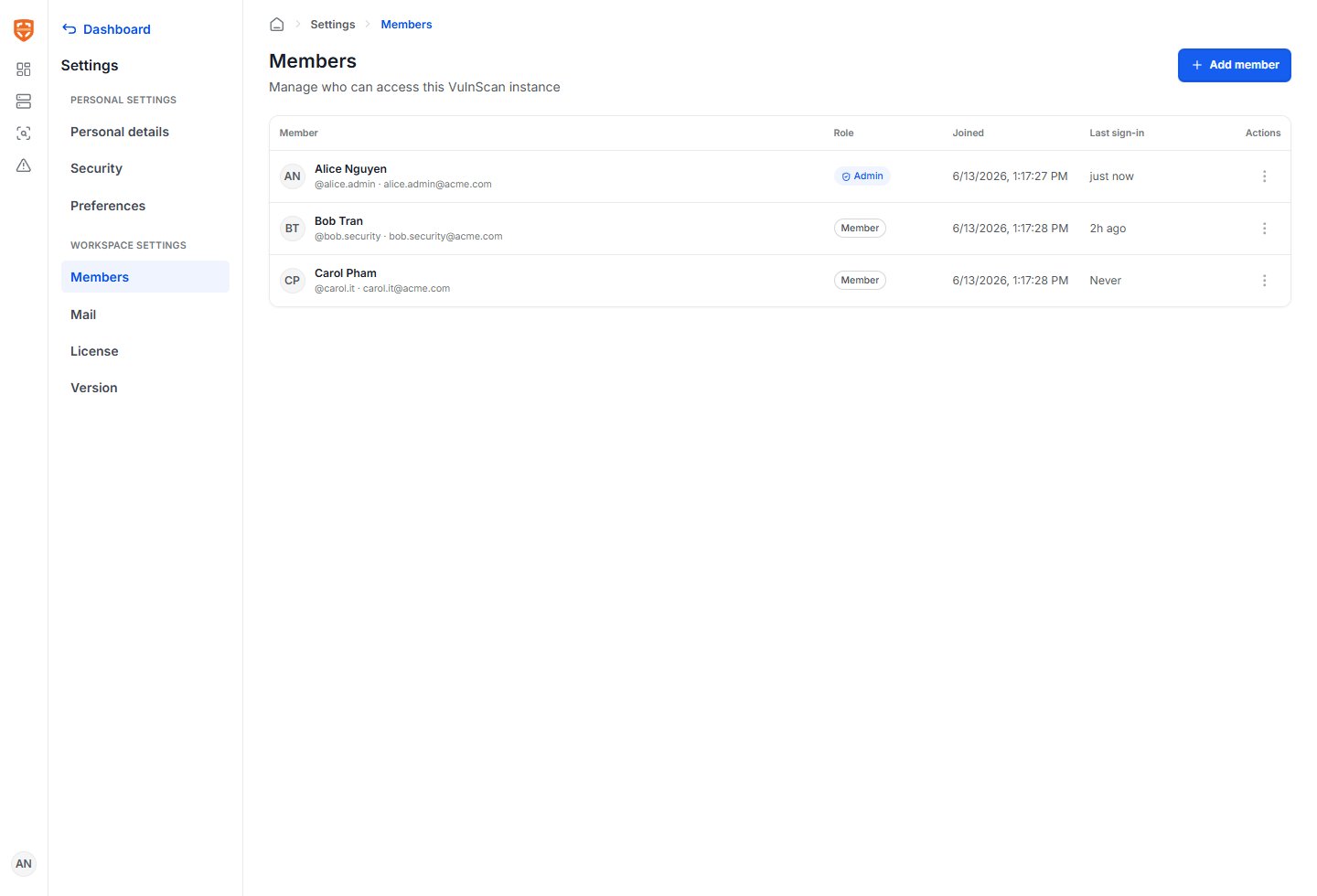 To invite a member:
1. Open **Workspace settings**.
2. Select **Members**.
3. Choose **Invite member**.
4. Enter the user's name and email address.
5. Select `Admin` or `Member`.
6. Send the invitation.
If mail delivery is configured, VulnScan sends an invitation email automatically.
## Mail Delivery
VulnScan can send operational emails for member invitations, completed scans, and completed PDF reports.
Supported providers:
| Provider | Use When |
| ------------ | --------------------------------------------------------- |
| SendGrid API | Your organization uses SendGrid for transactional email. |
| AWS SES | Your organization sends mail through AWS. |
| Custom SMTP | You have an internal SMTP relay or another mail provider. |
To invite a member:
1. Open **Workspace settings**.
2. Select **Members**.
3. Choose **Invite member**.
4. Enter the user's name and email address.
5. Select `Admin` or `Member`.
6. Send the invitation.
If mail delivery is configured, VulnScan sends an invitation email automatically.
## Mail Delivery
VulnScan can send operational emails for member invitations, completed scans, and completed PDF reports.
Supported providers:
| Provider | Use When |
| ------------ | --------------------------------------------------------- |
| SendGrid API | Your organization uses SendGrid for transactional email. |
| AWS SES | Your organization sends mail through AWS. |
| Custom SMTP | You have an internal SMTP relay or another mail provider. |
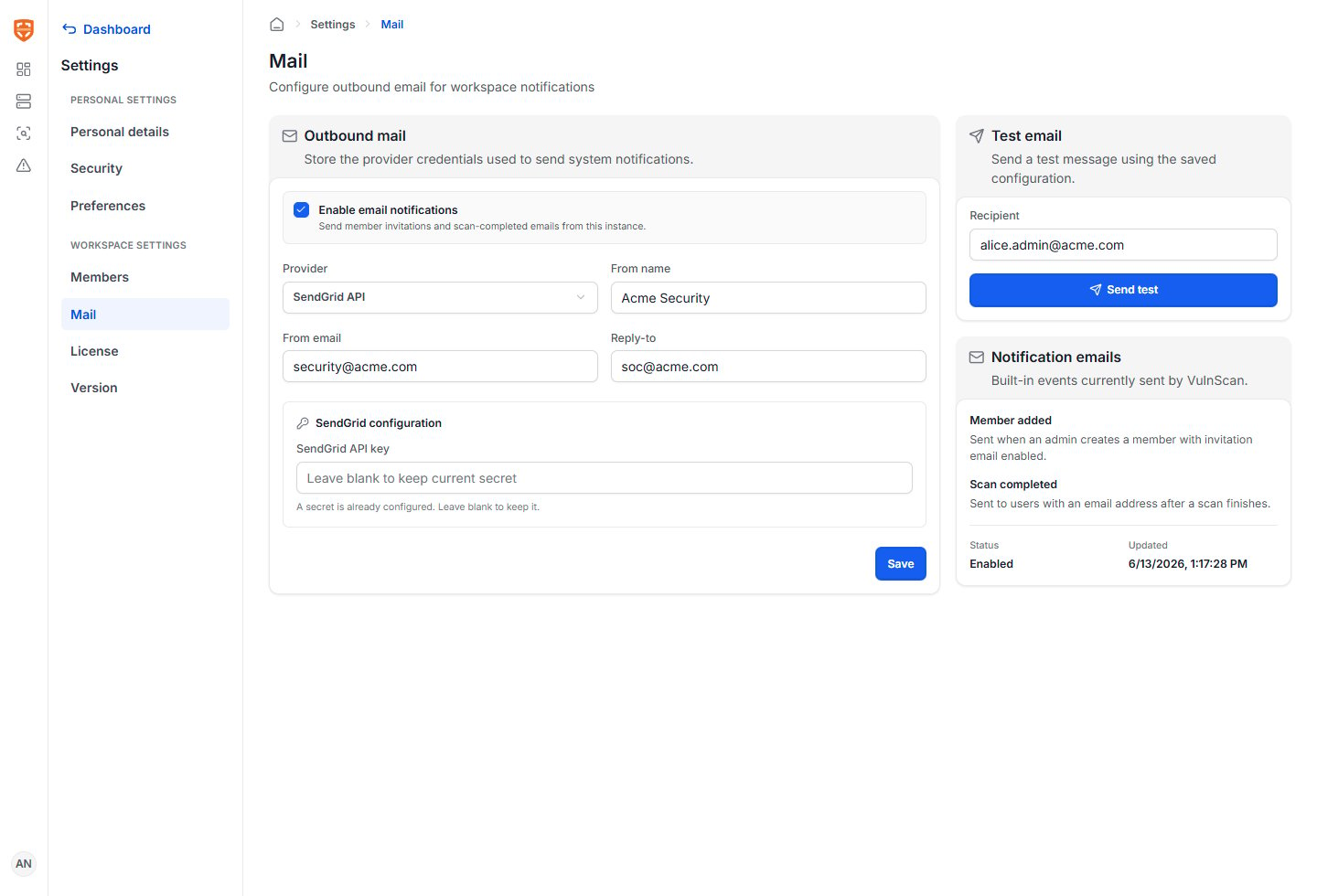 Typical mail configuration includes:
* Provider type.
* Sender name and sender email.
* API token or SMTP credentials.
* SMTP host, port, TLS mode, username, and password for custom SMTP.
* Region and credential fields for AWS SES where applicable.
* Test email recipient.
Always send a test email after changing mail configuration.
## Email Templates
VulnScan uses product email templates for:
* Member invitation.
* Scan completed.
* Report ready.
Email content should be clear enough for the recipient to understand the workspace, scan, asset, severity summary, and next action without opening unrelated systems.
## License
The license screen explains what the instance is allowed to scan and how much capacity remains.
Typical mail configuration includes:
* Provider type.
* Sender name and sender email.
* API token or SMTP credentials.
* SMTP host, port, TLS mode, username, and password for custom SMTP.
* Region and credential fields for AWS SES where applicable.
* Test email recipient.
Always send a test email after changing mail configuration.
## Email Templates
VulnScan uses product email templates for:
* Member invitation.
* Scan completed.
* Report ready.
Email content should be clear enough for the recipient to understand the workspace, scan, asset, severity summary, and next action without opening unrelated systems.
## License
The license screen explains what the instance is allowed to scan and how much capacity remains.
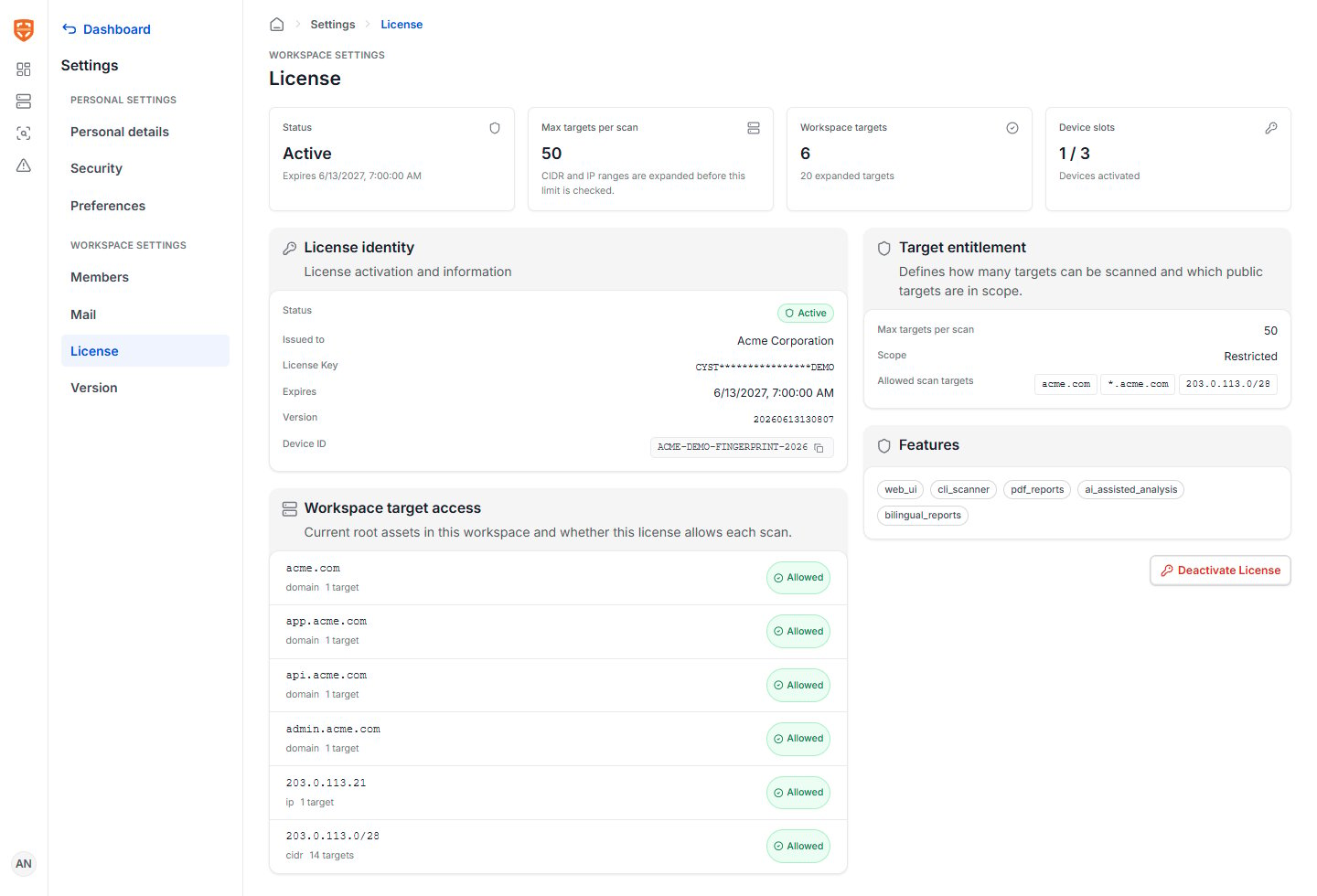 Review these fields:
| Field | Meaning |
| ---------------- | ------------------------------------------------------------------------------------------------------------- |
| Status | Active, expired, inactive, or invalid. |
| Expiration | Date and time when the license stops allowing new scans. |
| Allowed targets | Domains, wildcard domains, IP addresses, or CIDR ranges included in the license. |
| Target limit | Maximum number of licensed targets or assets, depending on the license model. |
| Target usage | How many targets have been used. |
| Activation limit | Number of machines or instances allowed to activate the license. |
| Features | Licensed capabilities such as Web UI, CLI, reports, AI assistance, or advanced intelligence where applicable. |
If a target is outside the licensed scope or the workspace has reached its limit, VulnScan shows the issue before the scan proceeds.
## Recommended Administration Setup
For production:
* Keep at least two administrators.
* Use named user accounts rather than shared accounts.
* Configure mail before inviting normal members.
* Review license target usage before adding large domains or CIDR ranges.
* Keep the license contact and renewal process documented.
* Re-test mail delivery after credential rotation.
* Review members periodically and remove users who no longer need access.
Review these fields:
| Field | Meaning |
| ---------------- | ------------------------------------------------------------------------------------------------------------- |
| Status | Active, expired, inactive, or invalid. |
| Expiration | Date and time when the license stops allowing new scans. |
| Allowed targets | Domains, wildcard domains, IP addresses, or CIDR ranges included in the license. |
| Target limit | Maximum number of licensed targets or assets, depending on the license model. |
| Target usage | How many targets have been used. |
| Activation limit | Number of machines or instances allowed to activate the license. |
| Features | Licensed capabilities such as Web UI, CLI, reports, AI assistance, or advanced intelligence where applicable. |
If a target is outside the licensed scope or the workspace has reached its limit, VulnScan shows the issue before the scan proceeds.
## Recommended Administration Setup
For production:
* Keep at least two administrators.
* Use named user accounts rather than shared accounts.
* Configure mail before inviting normal members.
* Review license target usage before adding large domains or CIDR ranges.
* Keep the license contact and renewal process documented.
* Re-test mail delivery after credential rotation.
* Review members periodically and remove users who no longer need access.