> ## Documentation Index
> Fetch the complete documentation index at: https://docs.cystack.net/llms.txt
> Use this file to discover all available pages before exploring further.
# Web login policy
> Block employees from logging into websites using non-company accounts, preventing data leakage from the company
**Use cases:**
Block employees from logging into websites using non-company accounts, preventing data leakage from the company, for example:
* Logging into personal cloud storage (Google Drive, OneDrive, Dropbox, iCloud,...)
* Logging into email, chat applications
* Logging into other services and platforms
Admins can require employees to only log into websites using company accounts within the device's browser.
Note: When applying this feature, employees will be automatically logged out of websites once, and will only be able to log back in using company accounts.
Admins can configure the policy by following these steps:
On the admin dashboard, select "Device Management" {'\u2192'} "Threat prevention" {'\u2192'} "Web login"}>
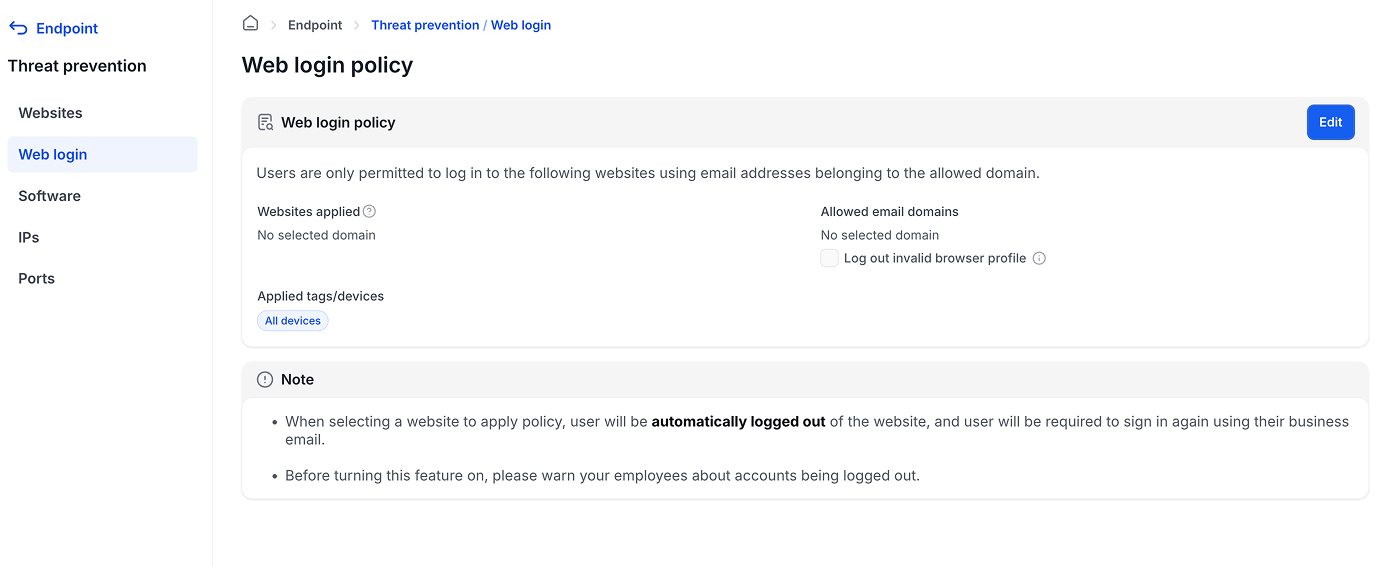 Click the
 Edit button to configure the policy} />
* Websites to apply: enter the domain name of the website to apply login restrictions (e.g., google.com, adobe.com,...)
* Allowed email domains: enter the company email domain (e.g., cystack.net) to only allow login with accounts from this domain
* Invalid browser profile logout checkbox: When enabled, employees will also be logged out of browser profiles (Google Chrome, Microsoft Edge) if they are not from the configured domain (recommended to enable this option)
* Applied devices: apply to all devices or specific devices/departments
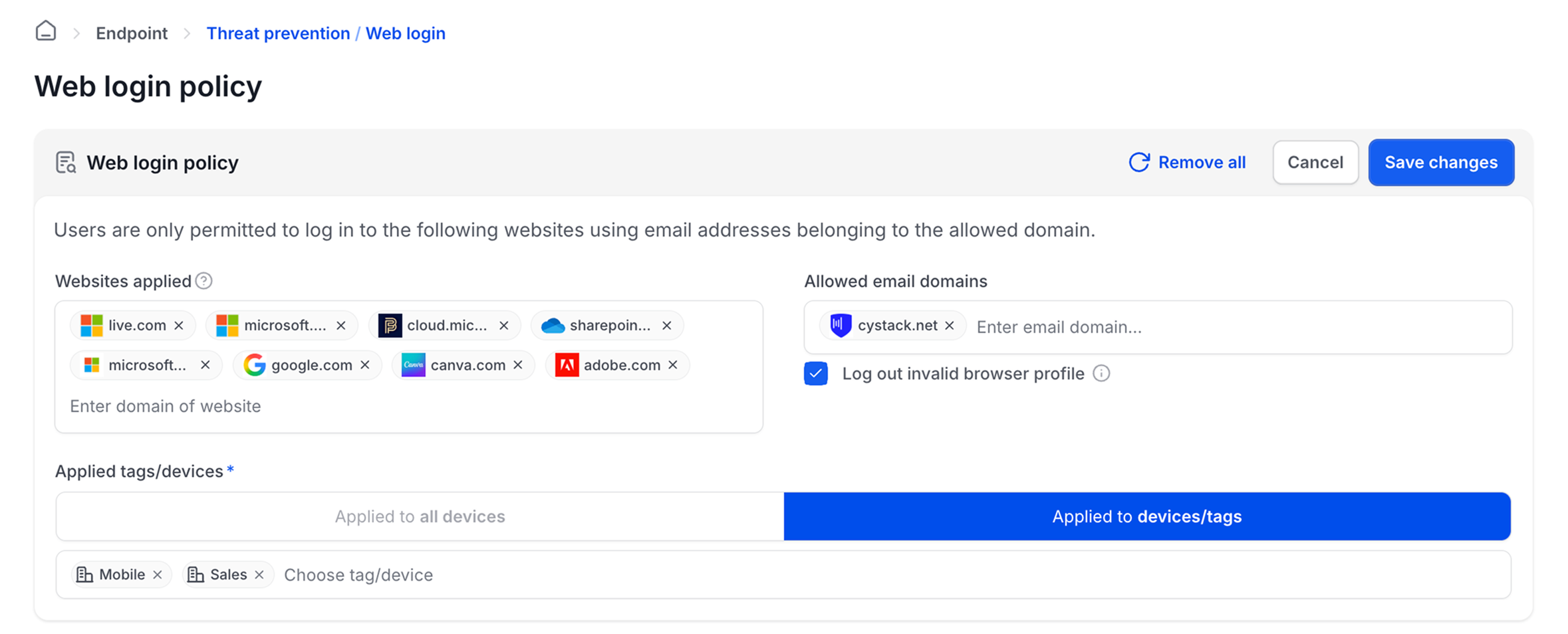 Click the
 Save button to save the configuration} />
Note: To block employees from logging into Google, Facebook, Apple login portals using non-company accounts, administrators can add domains of these services (google.com, id.apple.com, microsoftonline.com,...) to the policy.
After configuration, on devices with the policy applied:
1. When employees access websites that are configured, they will be logged out of those websites once (to make sure no non-company accounts are logged in)
2. Employees can only log back in using company email accounts from the configured domain
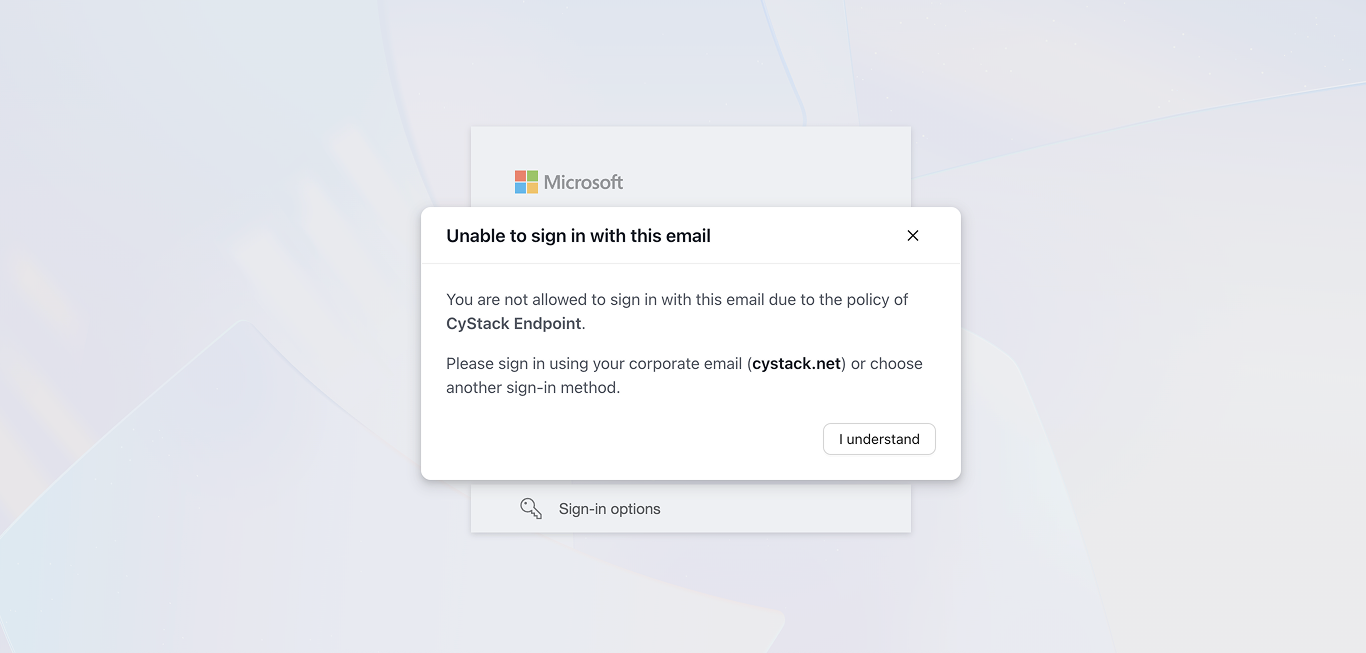
3. When users attempt to log into a website using an account not from the configured domain, the software will display a warning popup as shown in the image below: