> ## Documentation Index
> Fetch the complete documentation index at: https://docs.cystack.net/llms.txt
> Use this file to discover all available pages before exploring further.
# Block File Uploads
> Guide to using the file upload blocking feature
**Use Cases**
* Prevent employees from intentionally uploading sensitive company data to competitors.
* Block users from accidentally uploading data to unapproved or insecure channels, which could lead to data leakage.
**For Web Browsers:** CyStack allows you to configure policies to block file uploads to any website by specifying the website's domain name.
**For Desktop Applications:** CyStack supports blocking file uploads through the following application categories:
Chat and Email Applications:}>
* Zalo
* Telegram
* Discord
* Slack
* Outlook
* Facebook
Cloud Storage Applications:}>
* Cloudflare
* Fshare
* Google Drive
* OneDrive
* Mediafire
Workflow Management Applications:}>
* Base.vn
* Salework (Zalo)
***
## Feature Workflow Details
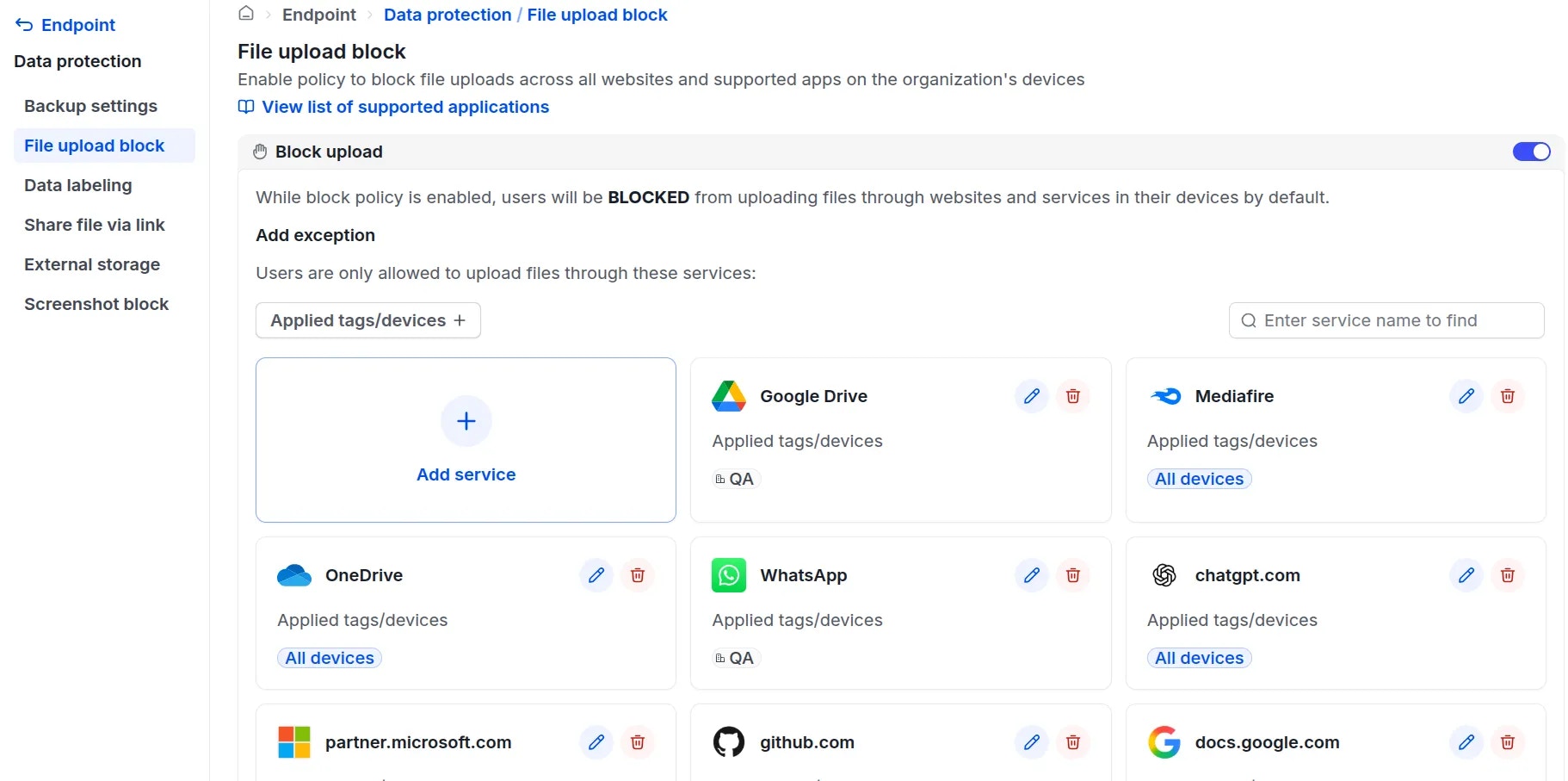
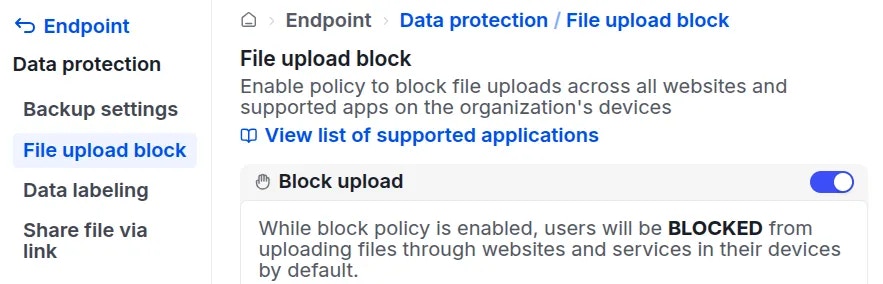
Administrators access the product under "Endpoint" {'\u2192'} "Data protection" {'\u2192'} "File upload block".}>
 Click the
 Block upload button {'\u2192'} a notification indicating the policy is enabled will appear.}>
When the policy is enabled, file uploads to all websites and applications in the list above will be blocked by default.
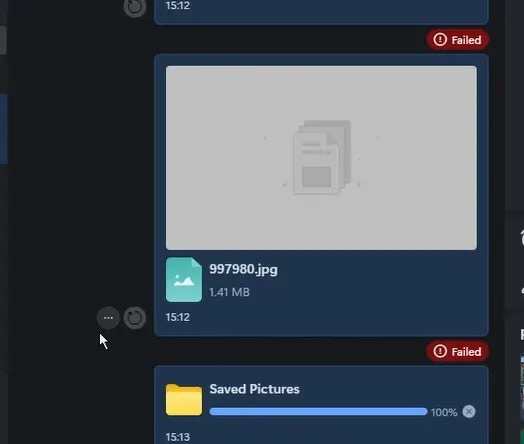
**Example:** An employee attempting to upload a file via Zalo will be blocked, and the upload will be flagged as failed, as shown in the image.
 ***
## To Allow File Uploads for Specific Applications, Administrators Can:
Click the
***
## To Allow File Uploads for Specific Applications, Administrators Can:
Click the Add service button.}>
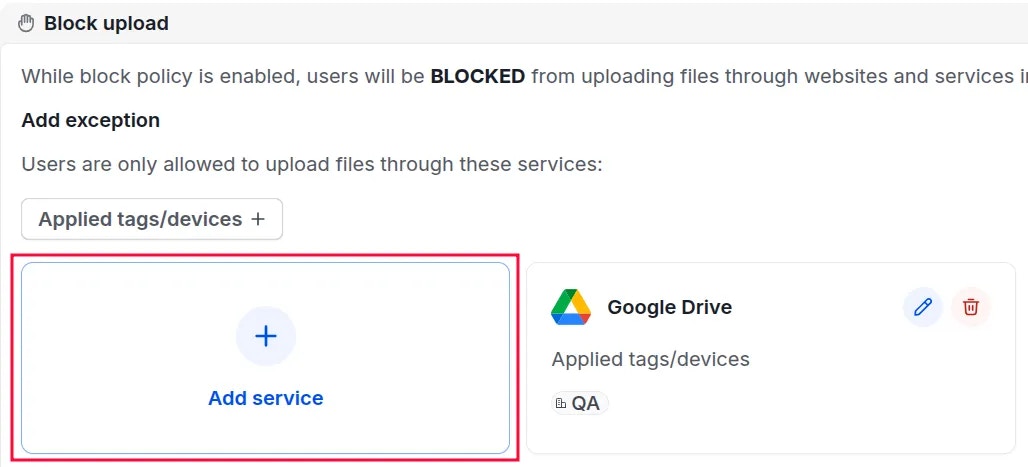 In the pop-up window, enter the application name or domain name for the application you wish to allow. Select the specific devices or device groups for which file uploads will be permitted.}>
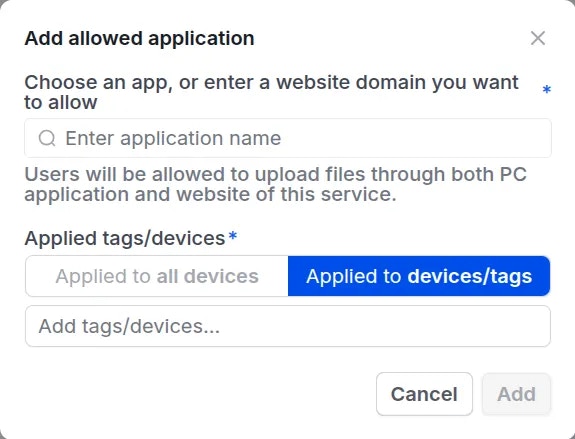 Upon saving the policy, the selected devices/device groups will be allowed to upload files to these specified applications.}>