> ## Documentation Index
> Fetch the complete documentation index at: https://docs.cystack.net/llms.txt
> Use this file to discover all available pages before exploring further.
# Software Control
> Monitor and control softwares installed on endpoints
**Use Cases:**
* Gain visibility into applications installed on employee devices to support upgrade planning, standardization, and compliance with standards such as ISO 27001, PCI-DSS, and HIPAA.
* Identify and remove unauthorized applications (e.g., file sharing tools, insecure chat softwares).
* Rapidly detect applications containing critical vulnerabilities to ensure timely removal and minimize the risk of endpoint compromise.
## Feature Details
### View Installed Software
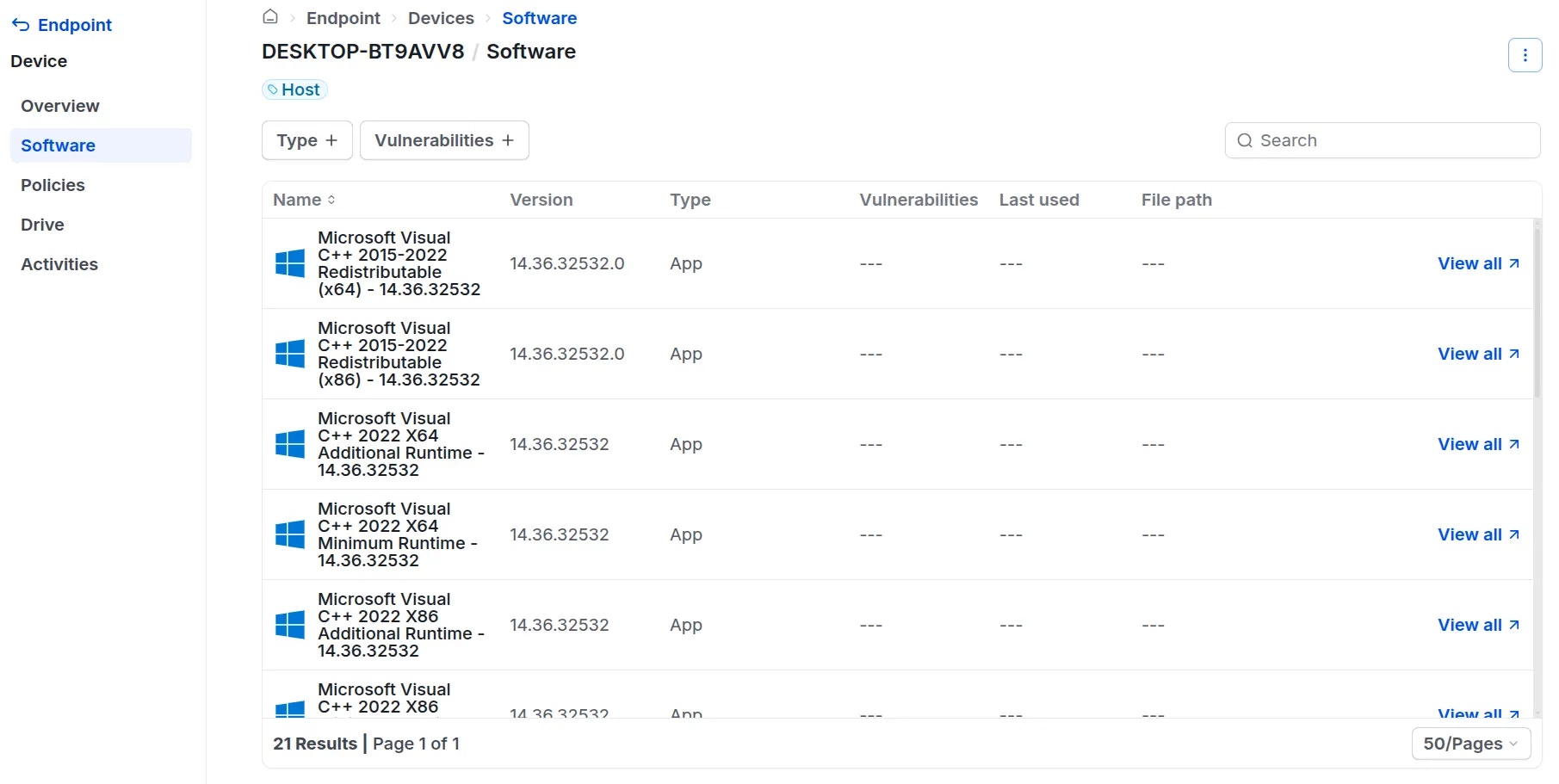
Administrators can review the software installed on any device by following these steps:
Navigate to the "Endpoint" section {'\u2192'} "Device".} />
Click on the target device {'\u2192'} click the View details button {'\u2192'} open the "Software" tab.} />
Here, you can view the complete list of software installed on the device or search for specific softwares.
 ### Block Software
To block a specific application, Administrators should perform the following steps:
Navigate to "Endpoint" {'\u2192'} "Prevention" {'\u2192'} "Software".} />
Click the
### Block Software
To block a specific application, Administrators should perform the following steps:
Navigate to "Endpoint" {'\u2192'} "Prevention" {'\u2192'} "Software".} />
Click the Add software policy button.} />
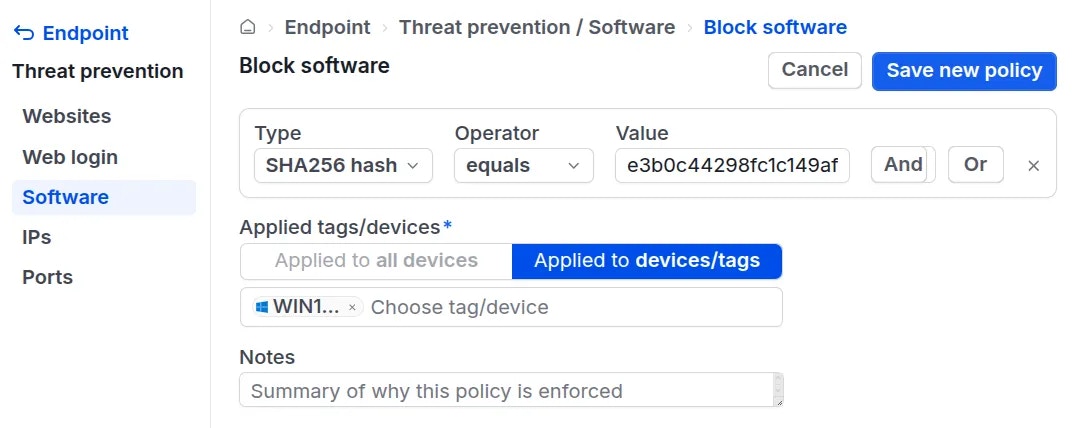
* **Path**: The file path to the application on the device. You can use operators such as equals, contains, starts with, or ends with to target the specific software.
* **Hash**: The cryptographic hash of the software (using SHA-256). You must enter the correct hash value to effectively block the application.
* **Process Name**: The name of the process when the software is running. You can use operators such as equals, contains, starts with, or ends with to target the software.
**1.** Typically, the process name matches the software name. Administrators can try entering the software name into the Name field.
**2.** If blocking is unsuccessful, the process name may differ from the software name. To find the correct process name:
* Open the software you wish to block.
* Open **Task Manager** {'\u2192'} locate the running software.
* The process name listed there is the value required for the policy.
* **Signature**: You can choose to block unsigned software (including software that is unsigned, self-signed, or not certified by a trusted organization).\
**Note:** Signature verification does not apply to the Linux operating system.
 Combine multiple rules using "AND" or "OR" operators}>
You can combine multiple rules to create a comprehensive blocking policy using
Combine multiple rules using "AND" or "OR" operators}>
You can combine multiple rules to create a comprehensive blocking policy using AND and OR logic:
* AND: Groups two or more rules together. The software is blocked only when **all** rules in the group are met.
* OR: Connects rules or rule groups. The software is blocked if **at least one** connected rule or rule group is met.
After defining the rules, select the target tags or devices. The selected devices, or devices belonging to the selected tags, will have the software blocked according to the policy.} />
Click Save to create the policy. The policy will be displayed in the list as shown below.}>
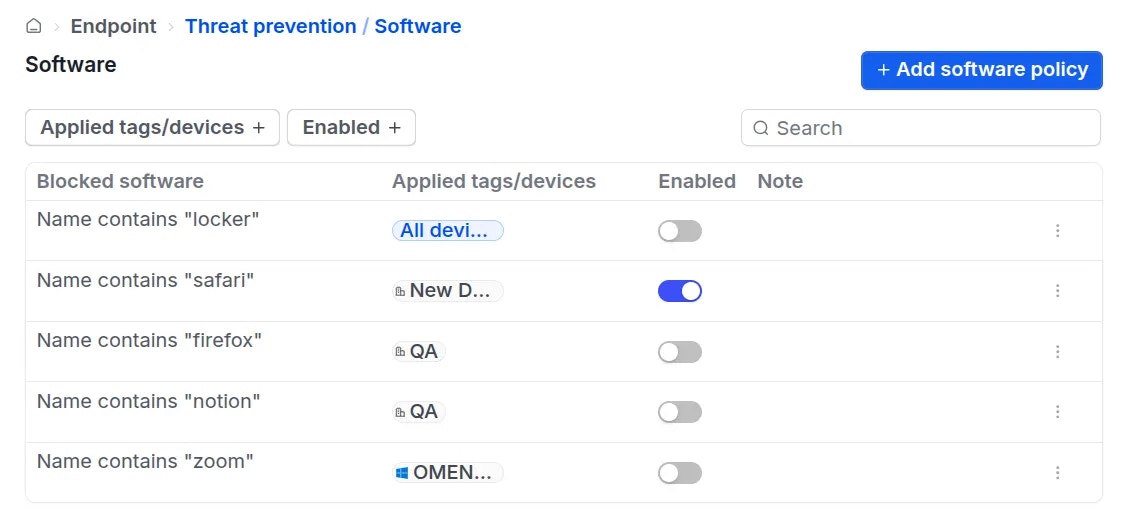 Administrators can temporarily disable, edit, or delete existing policies as needed.