> ## Documentation Index
> Fetch the complete documentation index at: https://docs.cystack.net/llms.txt
> Use this file to discover all available pages before exploring further.
# Remote Access
> Guide to using the remote access feature for devices within the organization
**Use Cases:**
* Provide rapid technical assistance remotely, reducing the need to move between locations.
* Troubleshoot and resolve incidents immediately upon detection without on-site presence.
* Perform remote software installations and updates.
* Monitor security status and ensure compliance with organizational policies.
To request to start a remote access session, follow these steps:
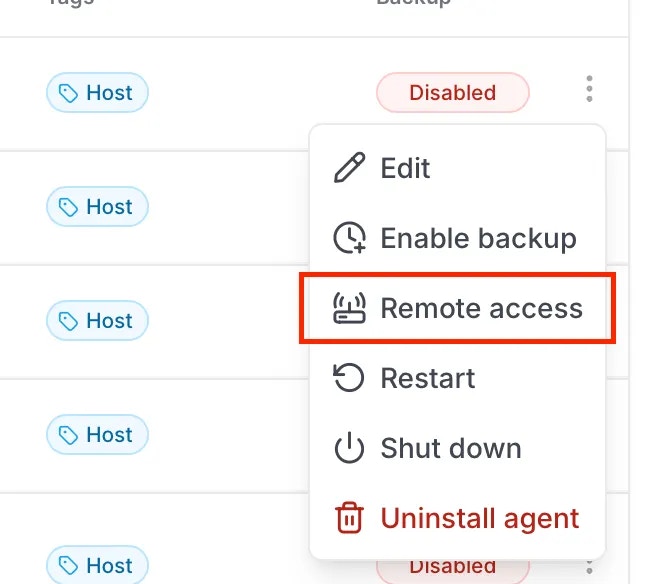
On the "Device" page, click the {'\u22EE'} button next to the target device {'\u2192'} select Remote access.}>
 In the pop-up window, follow the instructions to install the RustDesk application (the remote desktop software required for the feature).}>
This step can be skipped if RustDesk is already installed on the device.
Initiate the remote access request:}>
In the pop-up window, follow the instructions to install the RustDesk application (the remote desktop software required for the feature).}>
This step can be skipped if RustDesk is already installed on the device.
Initiate the remote access request:}>
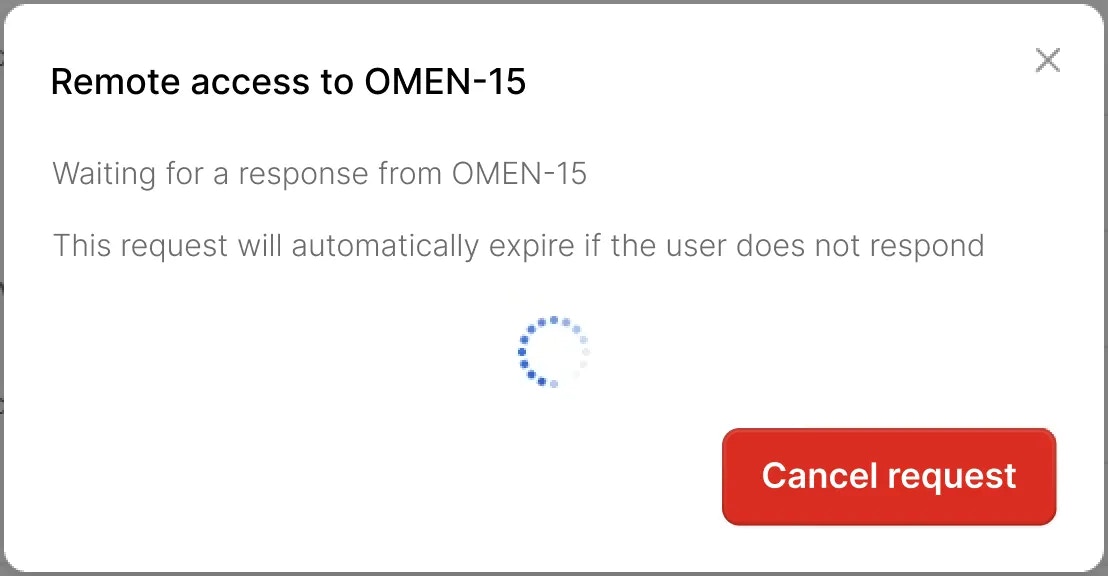 On the target device, the user must click
 Agree to authorize the connection.}>
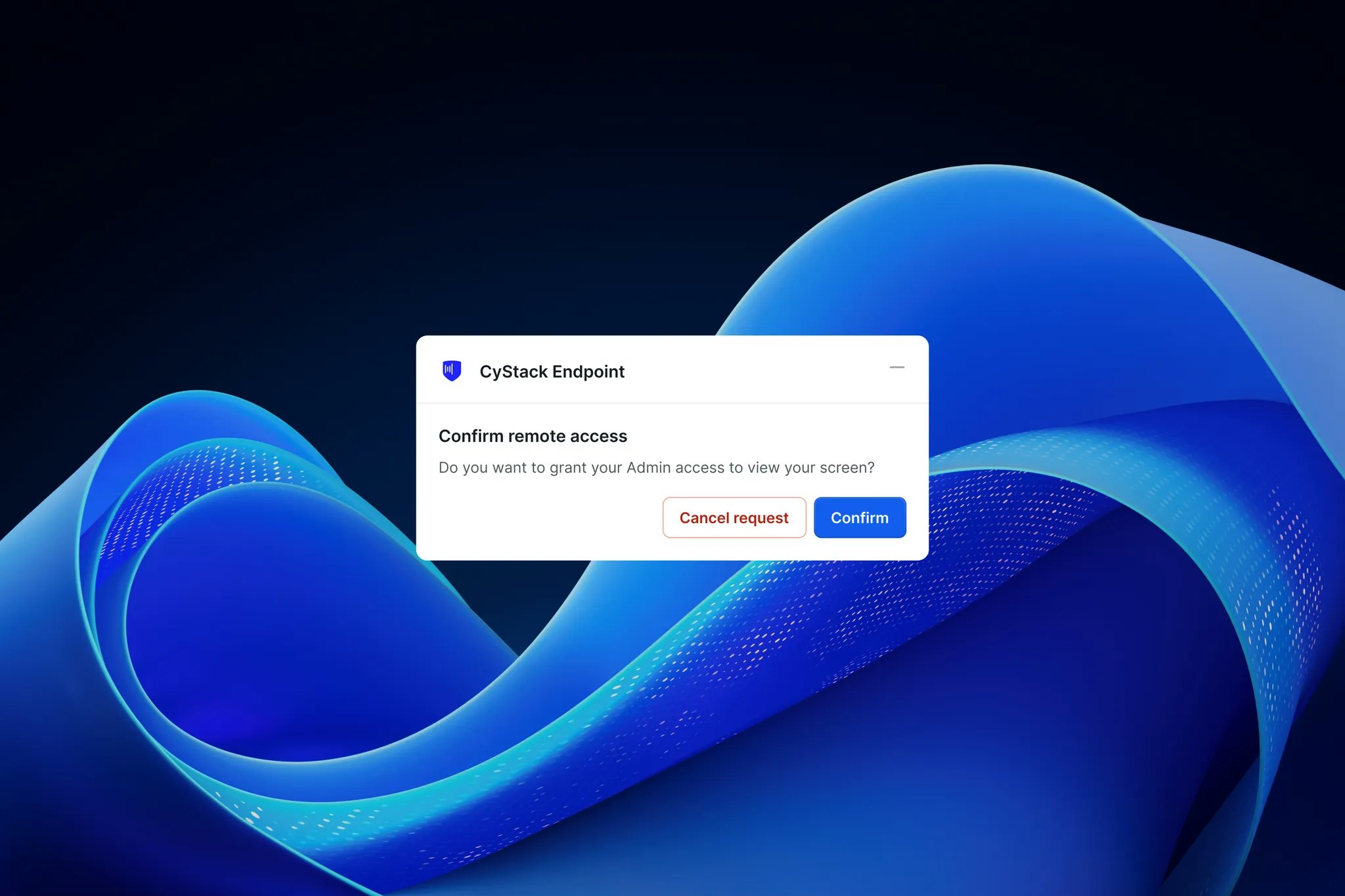 The
The ID and access code will be displayed on the administrator's screen. Enter these credentials into RustDesk to establish the connection and perform the necessary remote operations.} />