> ## Documentation Index
> Fetch the complete documentation index at: https://docs.cystack.net/llms.txt
> Use this file to discover all available pages before exploring further.
# Setup & Document Sharing Review
> For Administrators and Approvers
**Who is this document for?**
* **Administrator:** Configure the document sharing via link feature for the entire workspace.
* **Approver:** Review sharing requests and manage document access permissions.
***
## Feature Setup (Administrator)
This operation only needs to be performed once before deploying to employees.
### Step 1: Block unmanaged file transfers
To ensure data is only shared via the system link, Administrators need to enable the file transfer blocking feature.
Go to: **Device Management** → **Data Protection** → **File Transfer Blocking** → Toggle on Block file transfer.
 ***
### Step 2: Configure Sharing Management Mode
Administrators choose one of two control mechanisms:
1. **Free Mode:** Employees actively create links. Administrators perform post-audit via **Logs** (tracking identity, time, and number of visits).
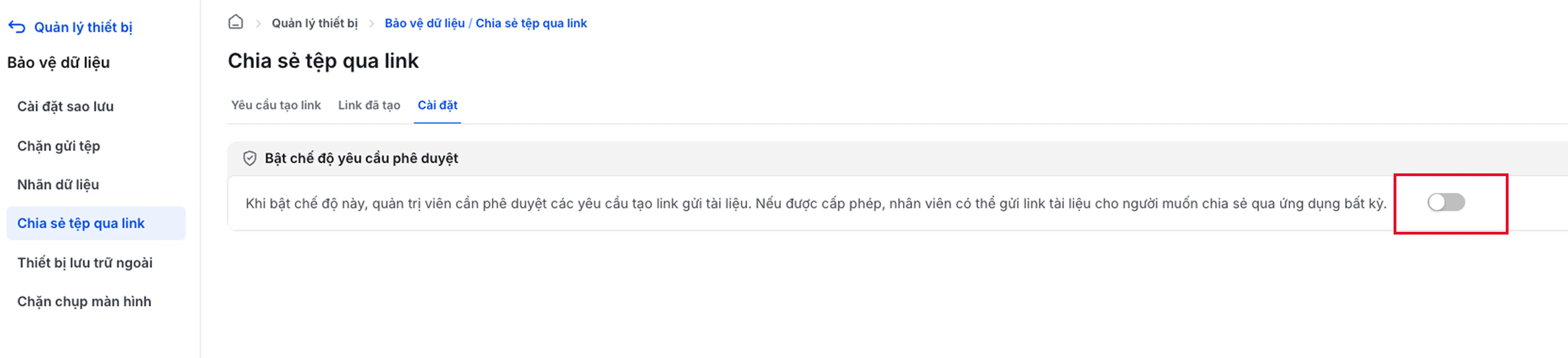
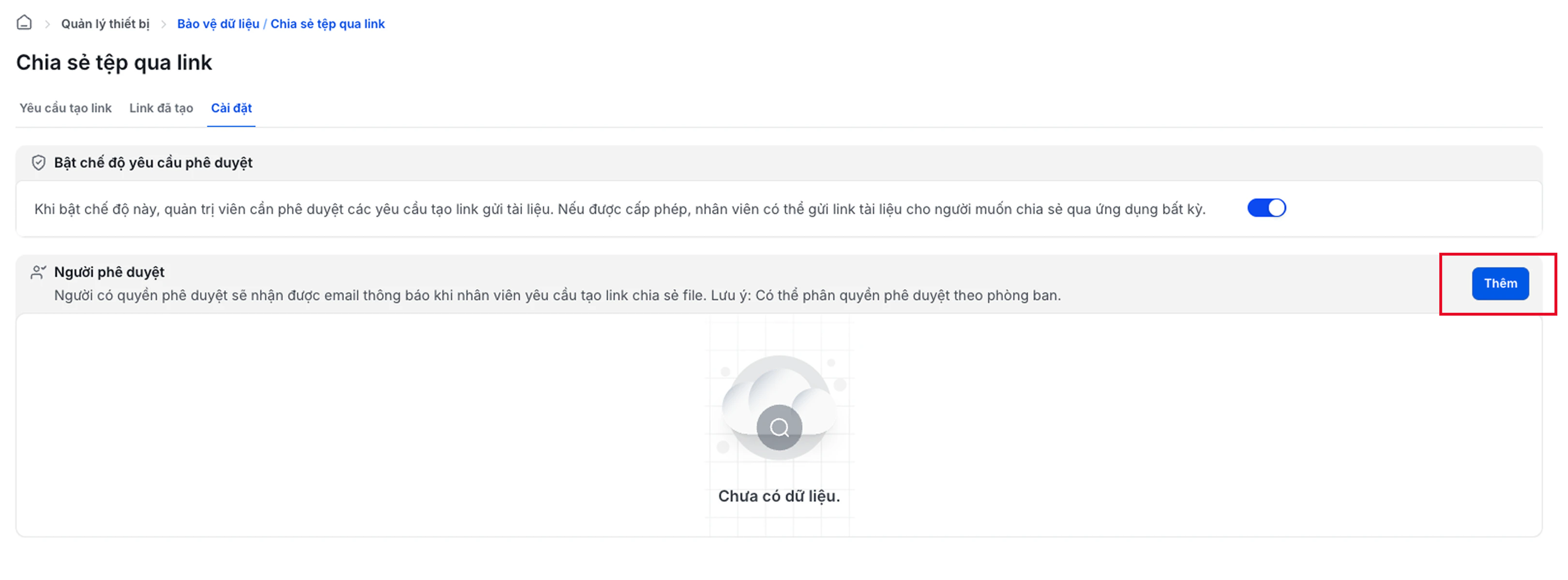
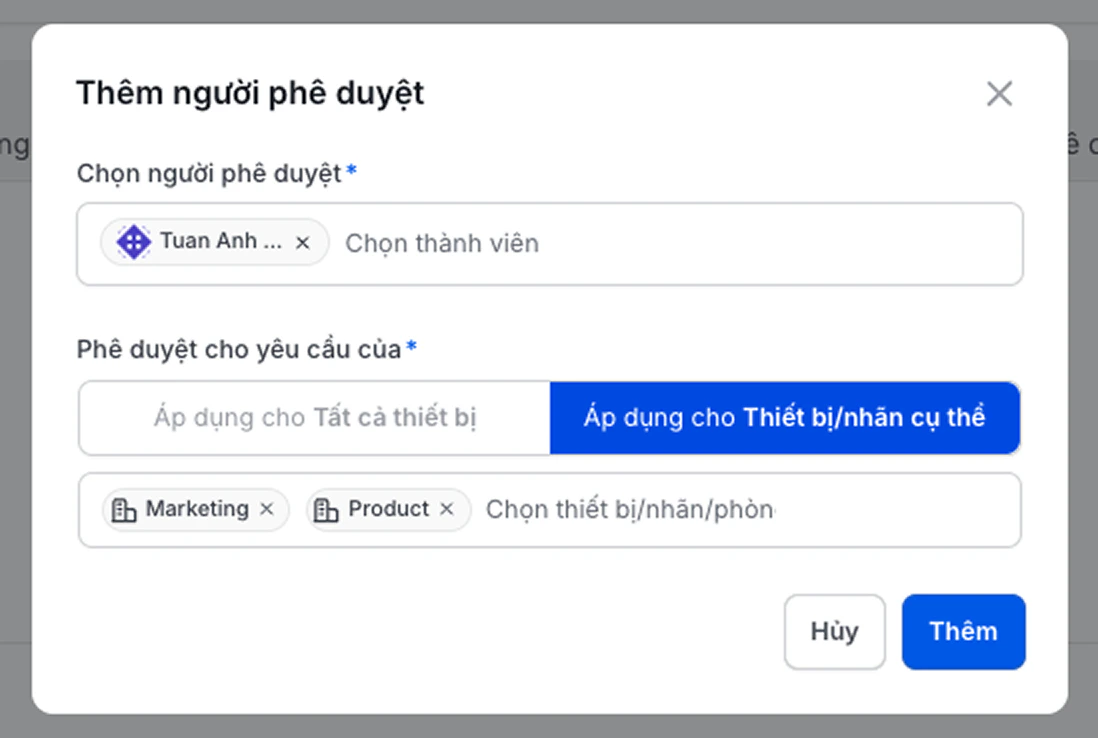
2. **Approval Mode:** Links only become effective after the employee's request is approved by an Approver.
**How to enable Approval Mode:**
***
### Step 2: Configure Sharing Management Mode
Administrators choose one of two control mechanisms:
1. **Free Mode:** Employees actively create links. Administrators perform post-audit via **Logs** (tracking identity, time, and number of visits).
2. **Approval Mode:** Links only become effective after the employee's request is approved by an Approver.
**How to enable Approval Mode:**
 ***
## Request Review (Approver)
> Applicable when the Administrator has enabled **Approval Mode**.
### Step 1: Create a Security Key (first-time setup)
The **Security Key** is a unique password for each account, used to decrypt document content when Previewing or downloading files directly from the system. Only the key owner can view the content - no other account in the same workspace can view it on their behalf.
The Security Key is linked to the user account and does not change across Workspaces.
When first accessing **Device Management** → **Data Protection** → **File Sharing via Link**, the system will automatically display a popup requesting key creation.
***
## Request Review (Approver)
> Applicable when the Administrator has enabled **Approval Mode**.
### Step 1: Create a Security Key (first-time setup)
The **Security Key** is a unique password for each account, used to decrypt document content when Previewing or downloading files directly from the system. Only the key owner can view the content - no other account in the same workspace can view it on their behalf.
The Security Key is linked to the user account and does not change across Workspaces.
When first accessing **Device Management** → **Data Protection** → **File Sharing via Link**, the system will automatically display a popup requesting key creation.
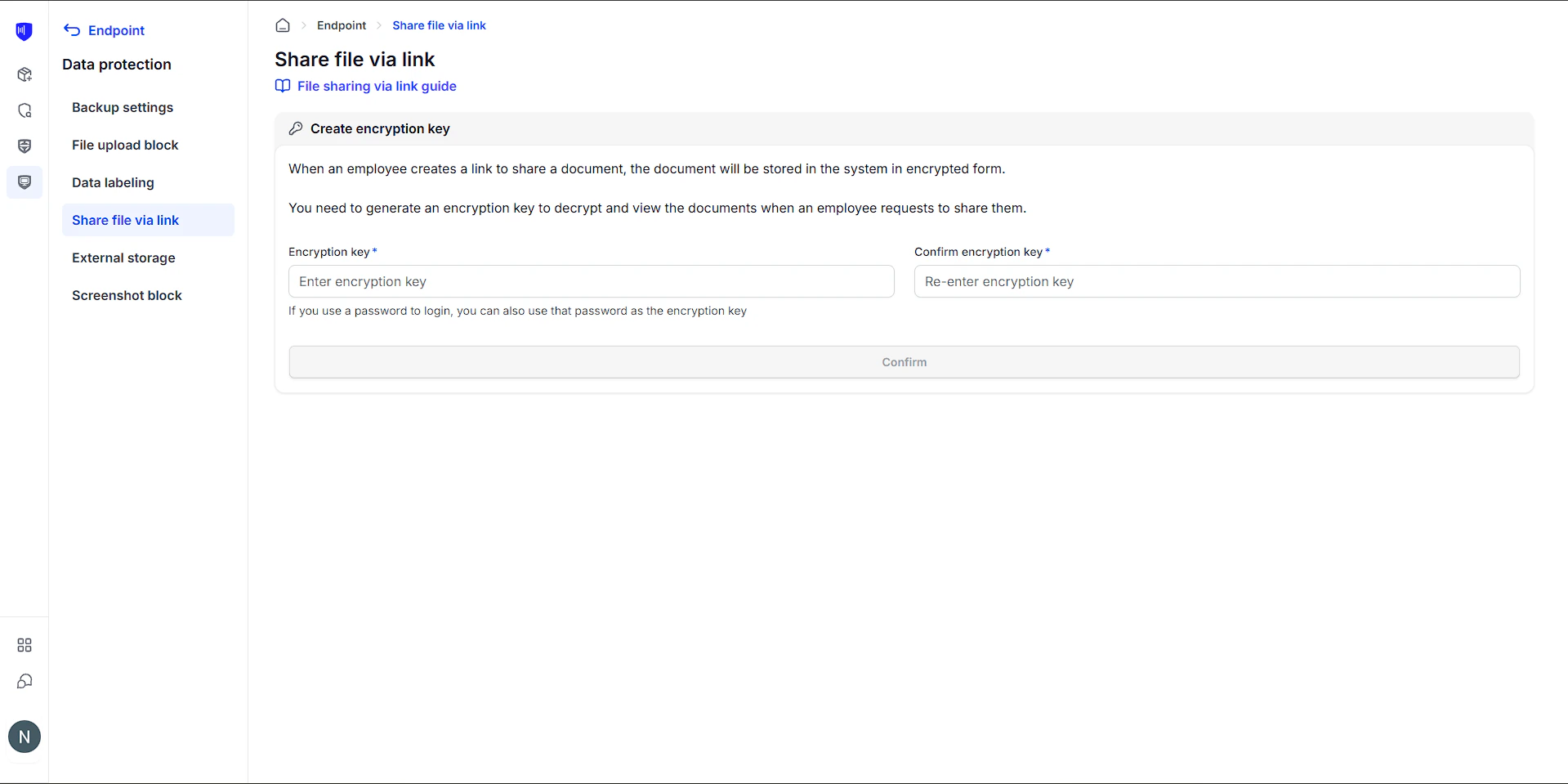 Remember your Security Key. If you close the popup without creating a key, you will not be able to access the File Sharing via Link screen until the key is created.
***
### Step 2: Receive notifications and view pending requests
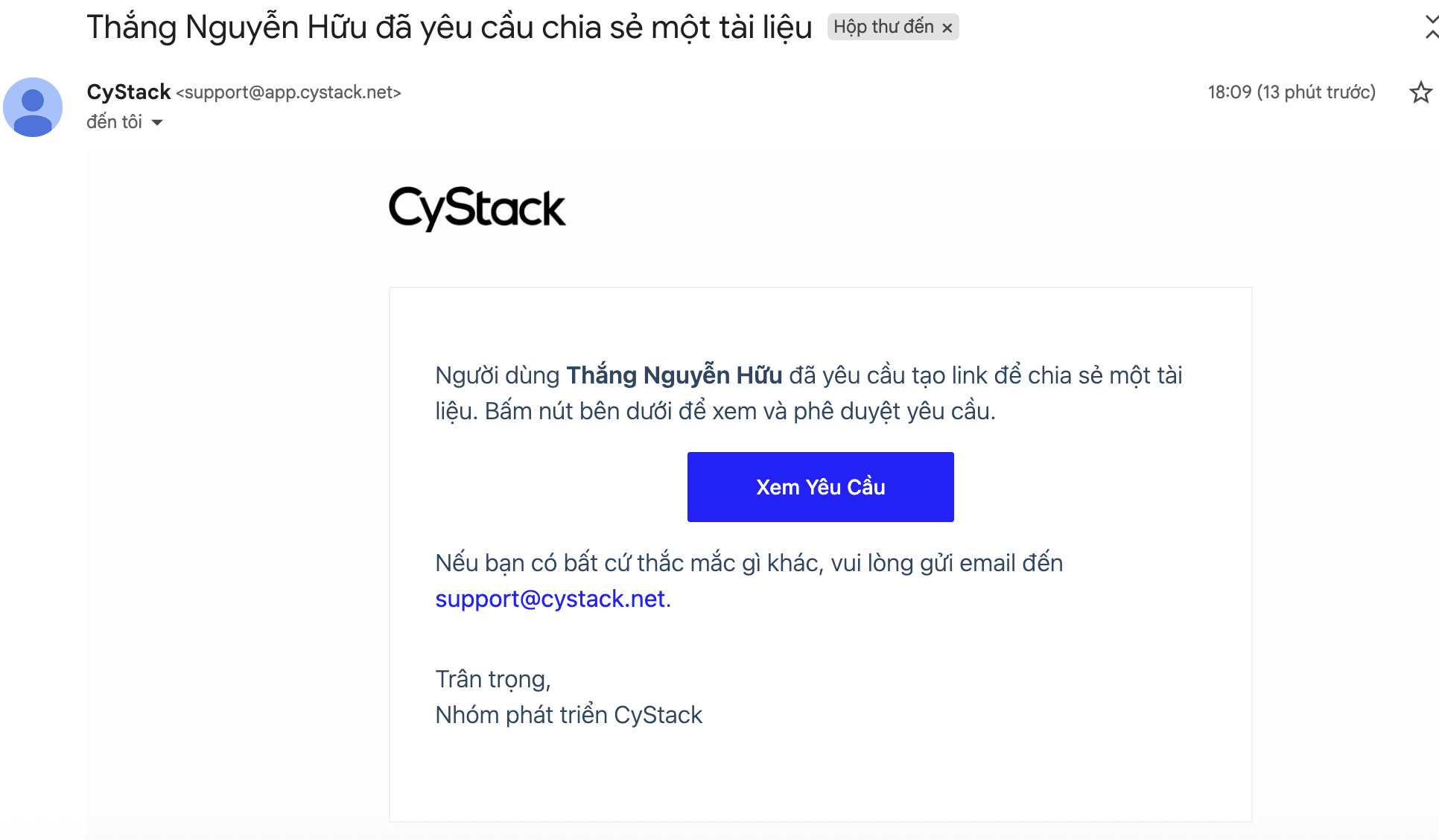
When an employee creates a sharing request, the Approver will receive an Email notification.
Remember your Security Key. If you close the popup without creating a key, you will not be able to access the File Sharing via Link screen until the key is created.
***
### Step 2: Receive notifications and view pending requests
When an employee creates a sharing request, the Approver will receive an Email notification.
 ***
### Step 3: Preview the document before approving
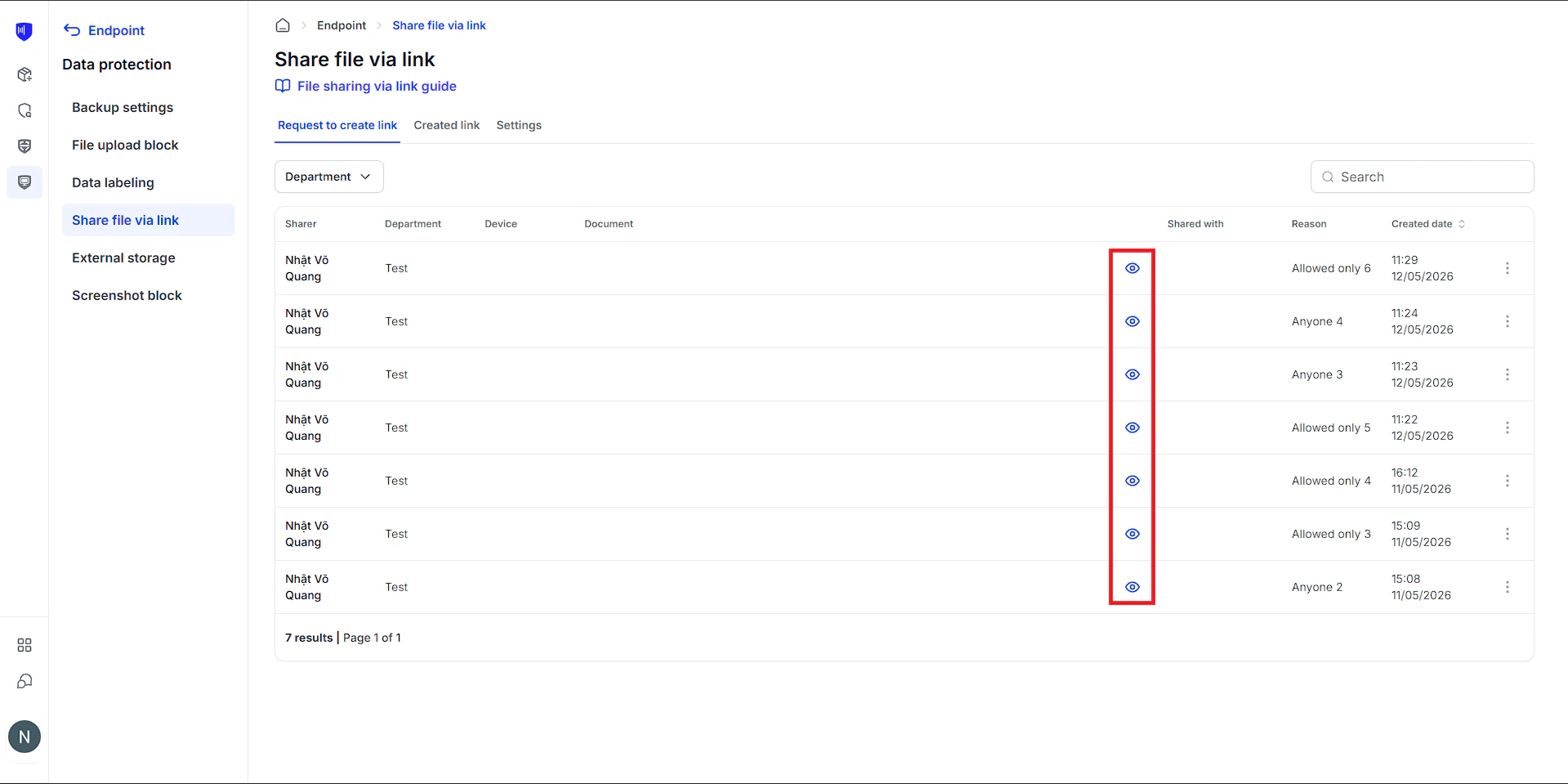
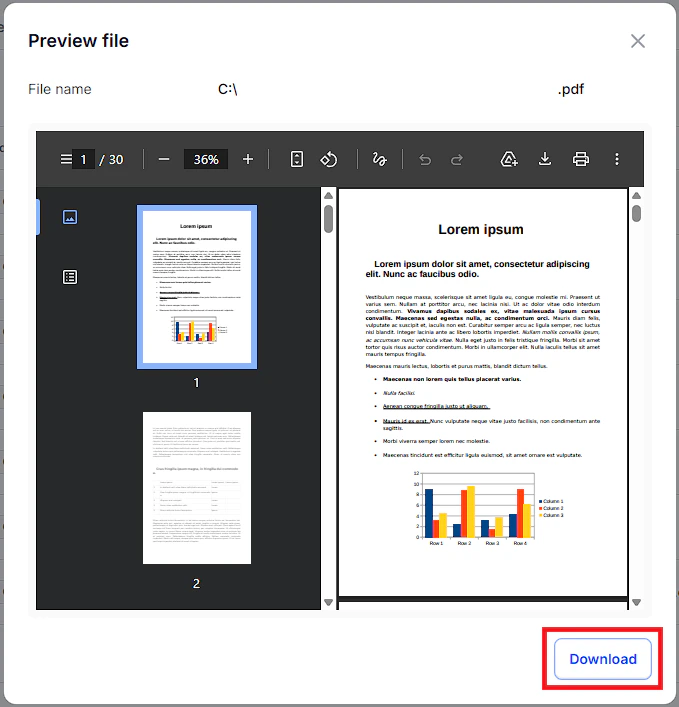
Before granting permission, Approvers should preview the document content to ensure no sensitive information is being shared externally.
***
### Step 3: Preview the document before approving
Before granting permission, Approvers should preview the document content to ensure no sensitive information is being shared externally.
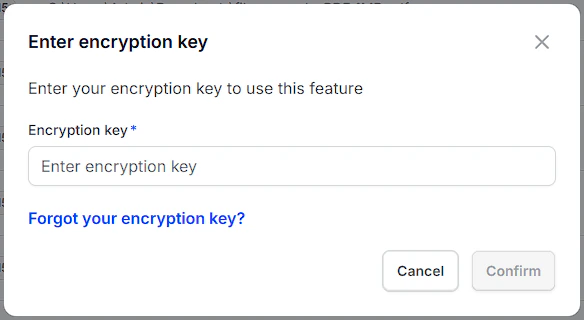
 The Security Key only needs to be entered once per session. After that, you can Preview other files without re-entering the key.
**Supported Preview Formats:**
| Type | Formats |
| ------------- | -------------------------------------------------------------- |
| Text / Code | txt, md, json, csv, log, xml, yaml, yml, js, ts, css, html, go |
| Images | png, jpg, jpeg, gif, webp, svg |
| Documents | pdf |
| Audio / Video | mp3, wav, ogg, mp4, webm |
***
### Step 4: Approve or Reject the request
Once approved, the employee will receive an Email notification and the document link will automatically appear on their computer screen.
***
### Managing links after approval
Approvers can adjust access permissions or revoke links at any time in the **Created Links** tab.
**Update Viewers:**
The Security Key only needs to be entered once per session. After that, you can Preview other files without re-entering the key.
**Supported Preview Formats:**
| Type | Formats |
| ------------- | -------------------------------------------------------------- |
| Text / Code | txt, md, json, csv, log, xml, yaml, yml, js, ts, css, html, go |
| Images | png, jpg, jpeg, gif, webp, svg |
| Documents | pdf |
| Audio / Video | mp3, wav, ogg, mp4, webm |
***
### Step 4: Approve or Reject the request
Once approved, the employee will receive an Email notification and the document link will automatically appear on their computer screen.
***
### Managing links after approval
Approvers can adjust access permissions or revoke links at any time in the **Created Links** tab.
**Update Viewers:**
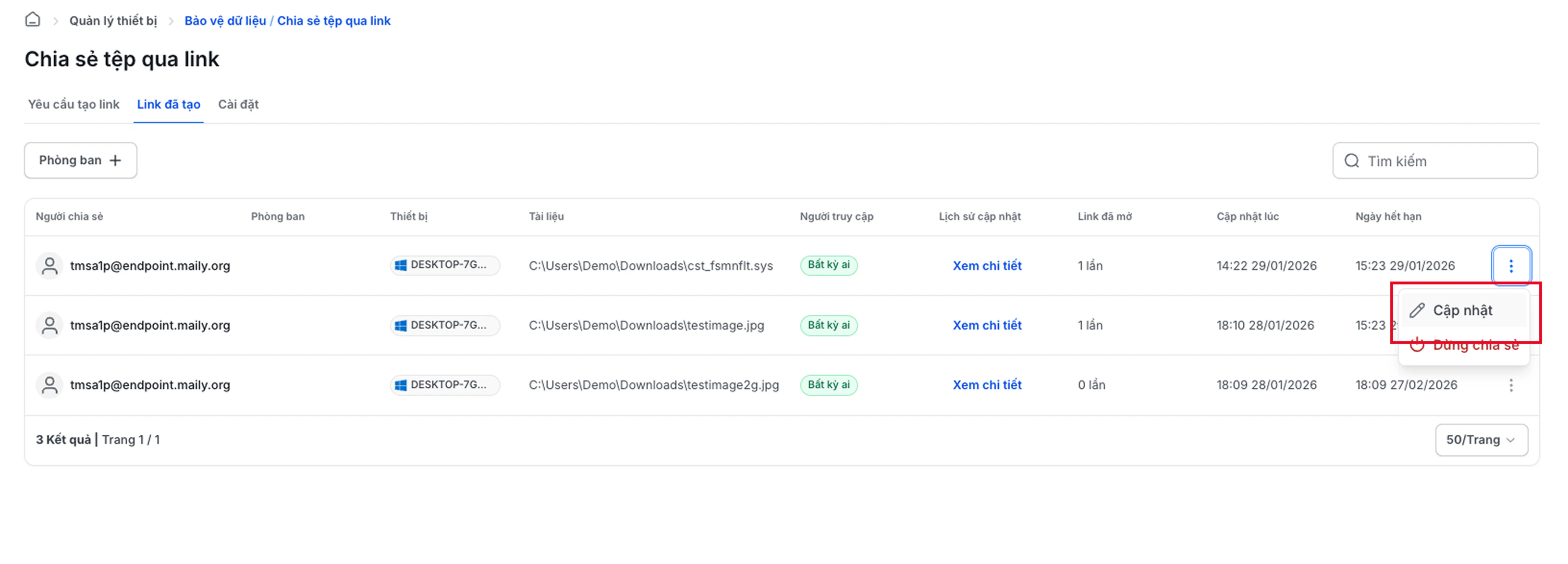
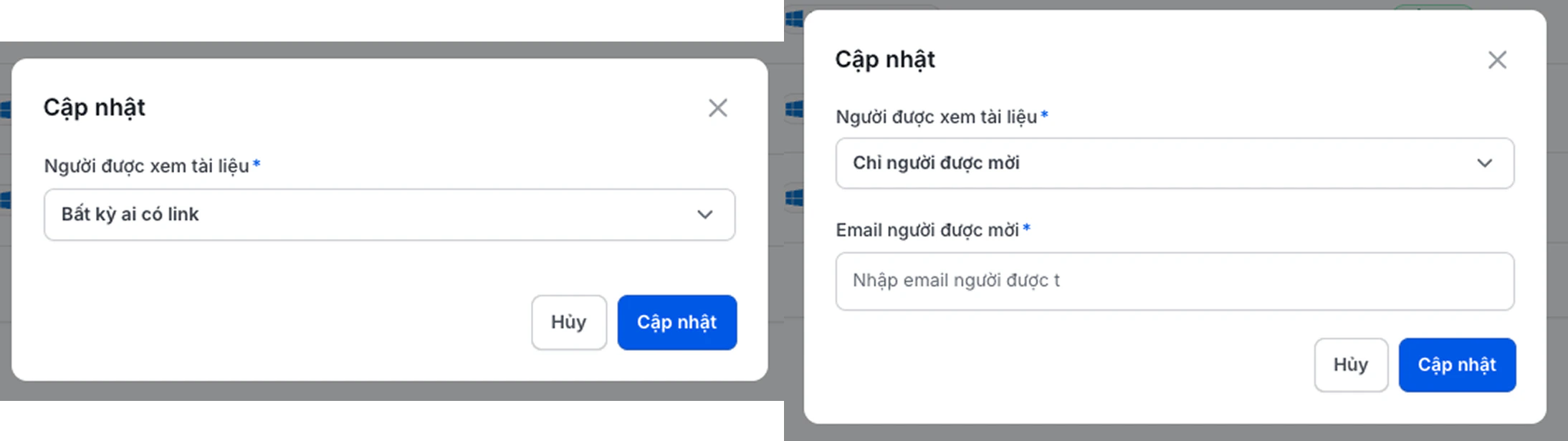 **Stop Sharing:**
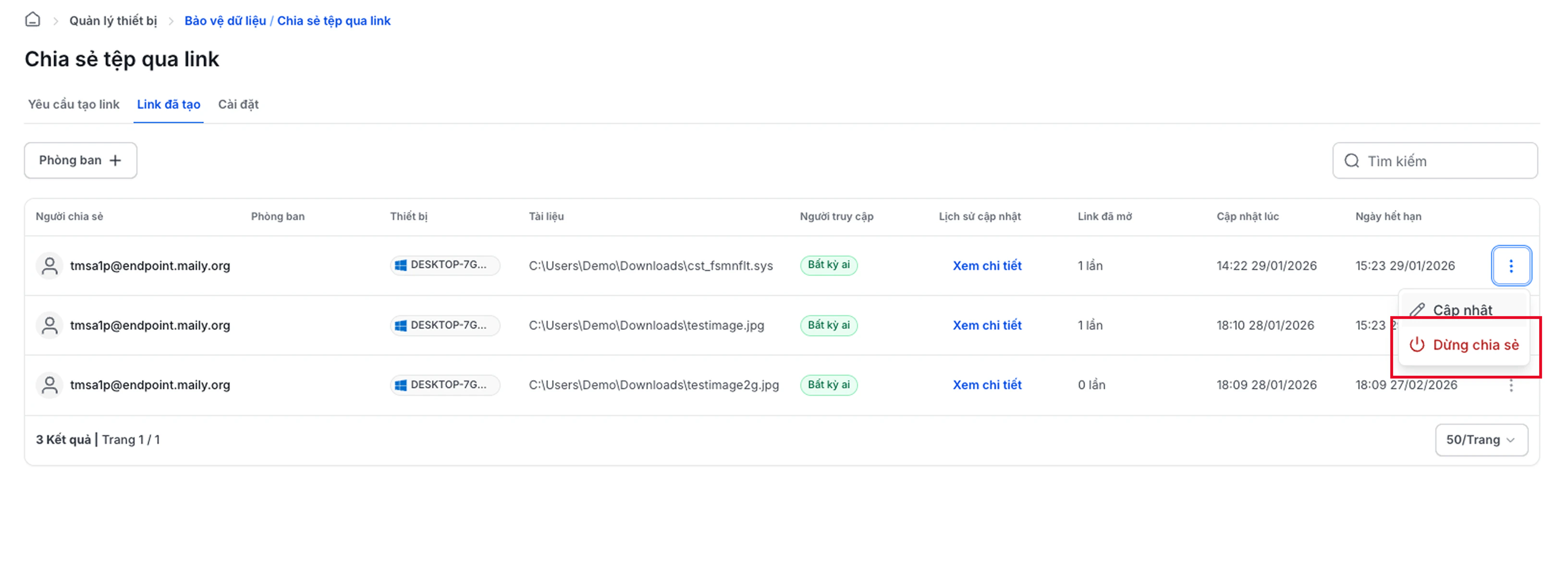
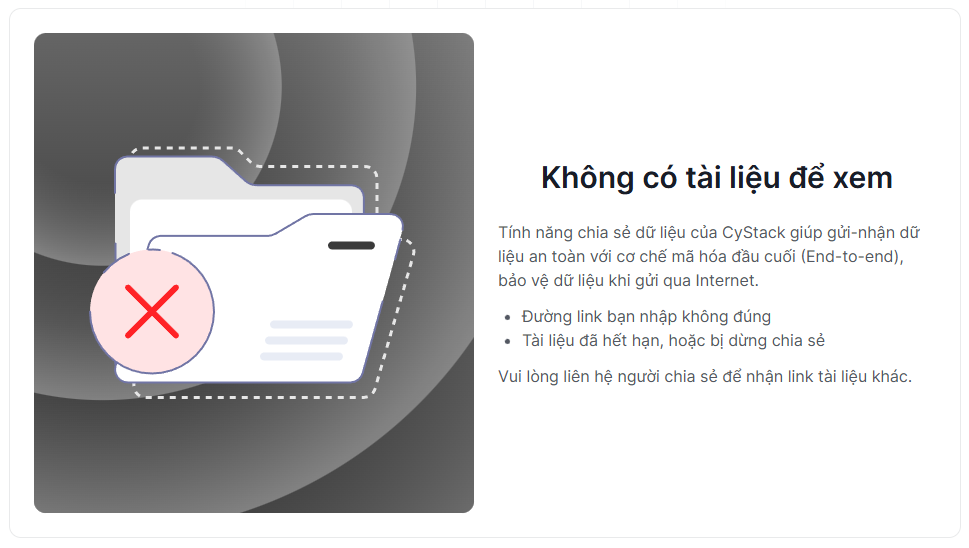 If a device is **Removed** from the Workspace, all associated sharing links will be permanently deleted.
***
## Security Key Management
### Change Security Key
Go to: **Account Settings** → **Security** → **Security Key for Device Management** → Click
If a device is **Removed** from the Workspace, all associated sharing links will be permanently deleted.
***
## Security Key Management
### Change Security Key
Go to: **Account Settings** → **Security** → **Security Key for Device Management** → Click Change Security Key.
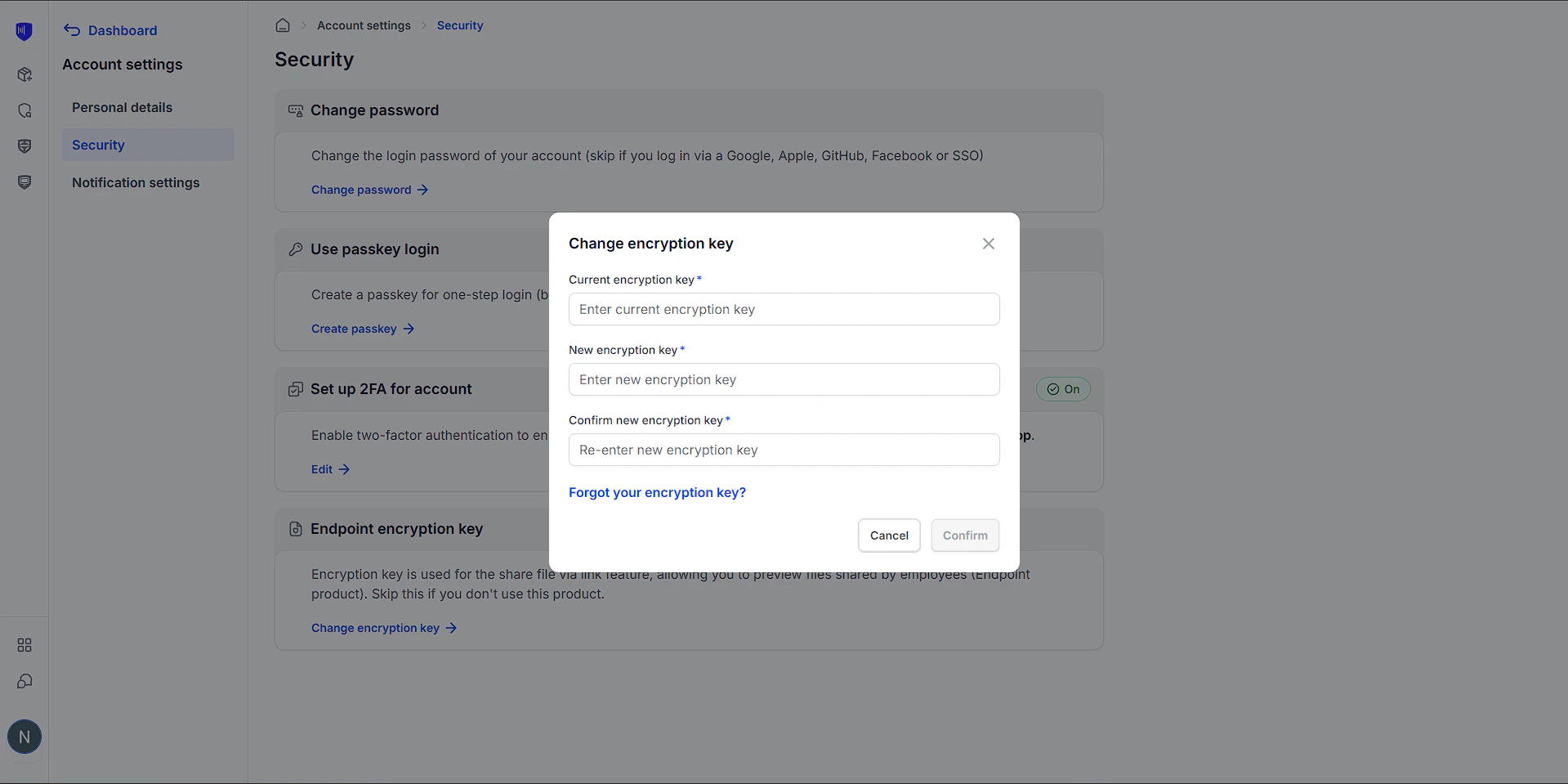 After changing the key, you cannot Preview or download from Preview for documents created before the change.
***
### Forgot Security Key
You can reset the key via OTP verification sent to your Email.
After changing the key, you cannot Preview or download from Preview for documents created before the change.
***
### Forgot Security Key
You can reset the key via OTP verification sent to your Email.
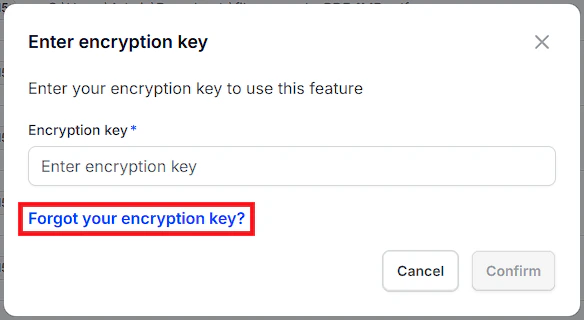
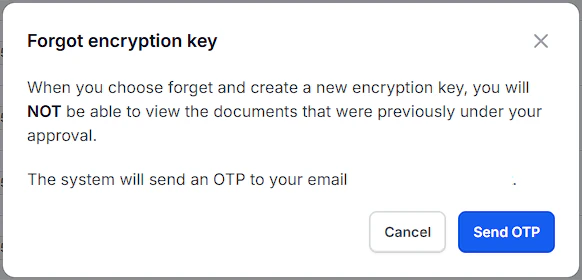
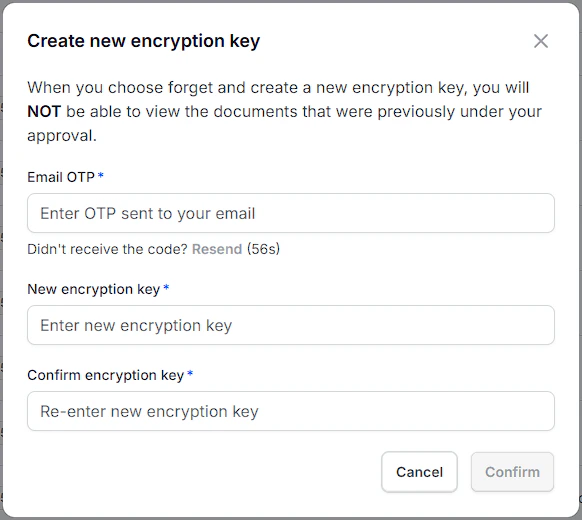 Resetting the key via OTP will also result in the loss of Preview and download capability for documents shared before the reset.