> ## Documentation Index
> Fetch the complete documentation index at: https://docs.cystack.net/llms.txt
> Use this file to discover all available pages before exploring further.
# Share & View Documents via Link
> For Employees and Document Viewers
**Who is this document for?**
* **Employee:** Create links to share documents directly from your personal computer.
* **Viewer:** Receive a link and access the shared document.
***
## Creating a Sharing Link (Employee)
Requirement: Already logged into the **Endpoint** application on the device.
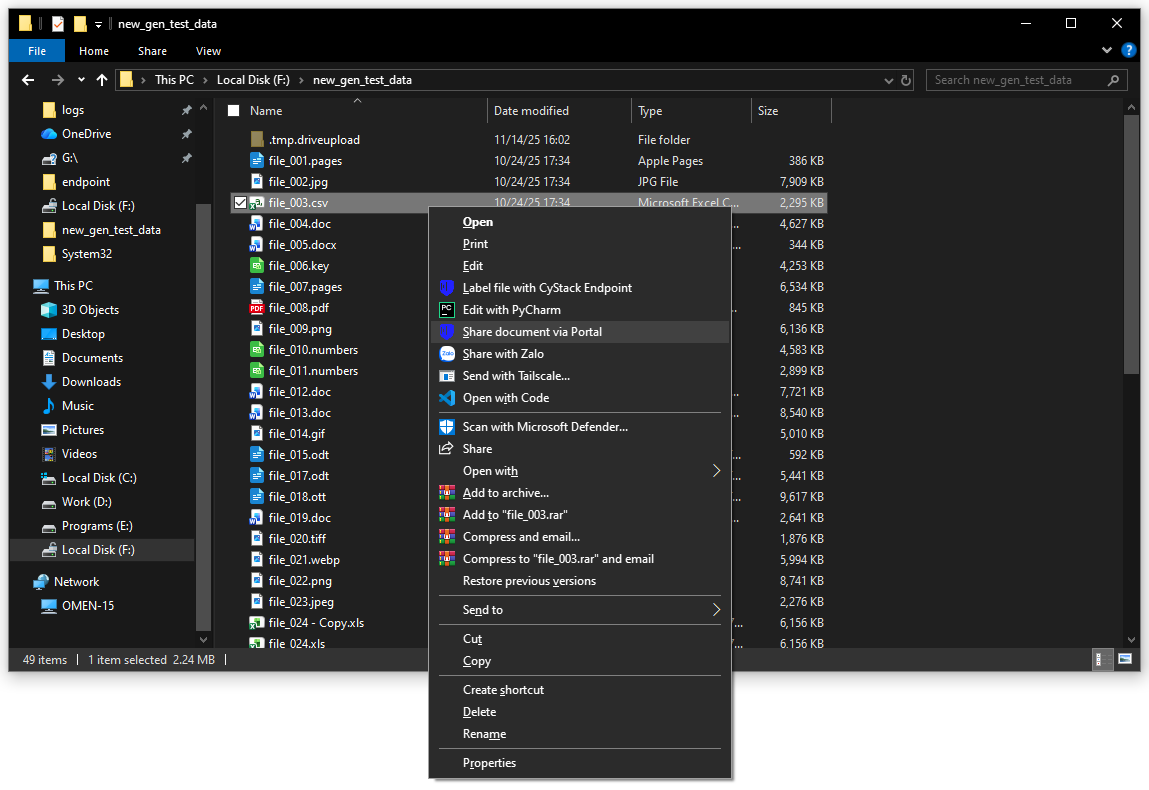
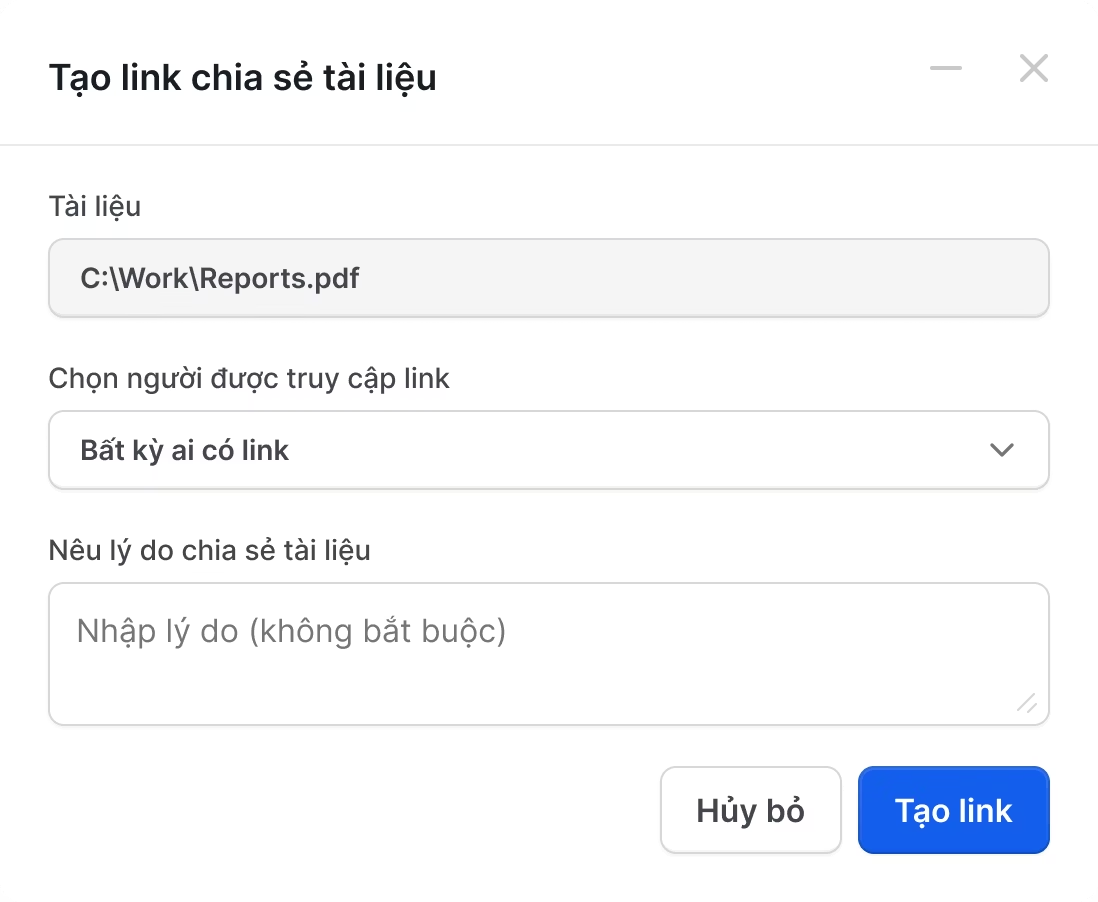 * **No approval required:** Link is generated immediately (default 30-day expiry).
* **Approval required:** System sends a request to the Approver. Once approved, the link will be displayed on screen and notified via Email.
* **No approval required:** Link is generated immediately (default 30-day expiry).
* **Approval required:** System sends a request to the Approver. Once approved, the link will be displayed on screen and notified via Email.
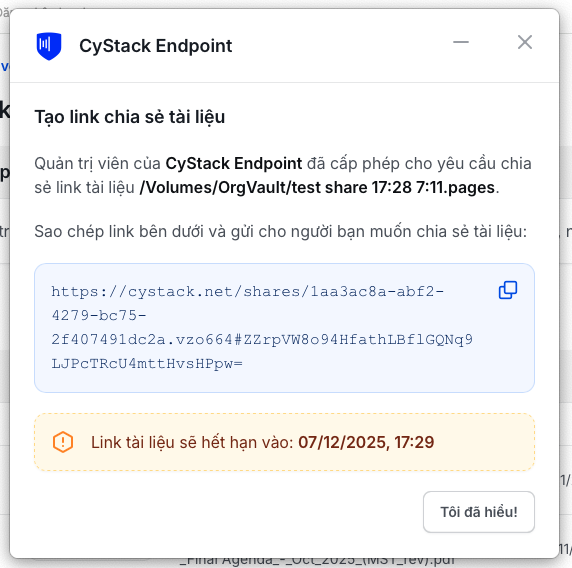 To retrieve an old link, repeat from Step 2 on the same file. The link remains valid if it has not expired or been stopped.
On macOS, this feature only supports documents located in the virtual drive managed by the Endpoint software.
To retrieve an old link, repeat from Step 2 on the same file. The link remains valid if it has not expired or been stopped.
On macOS, this feature only supports documents located in the virtual drive managed by the Endpoint software.
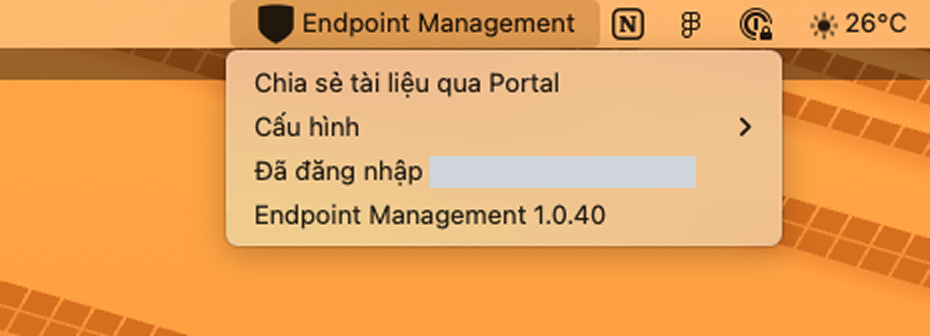
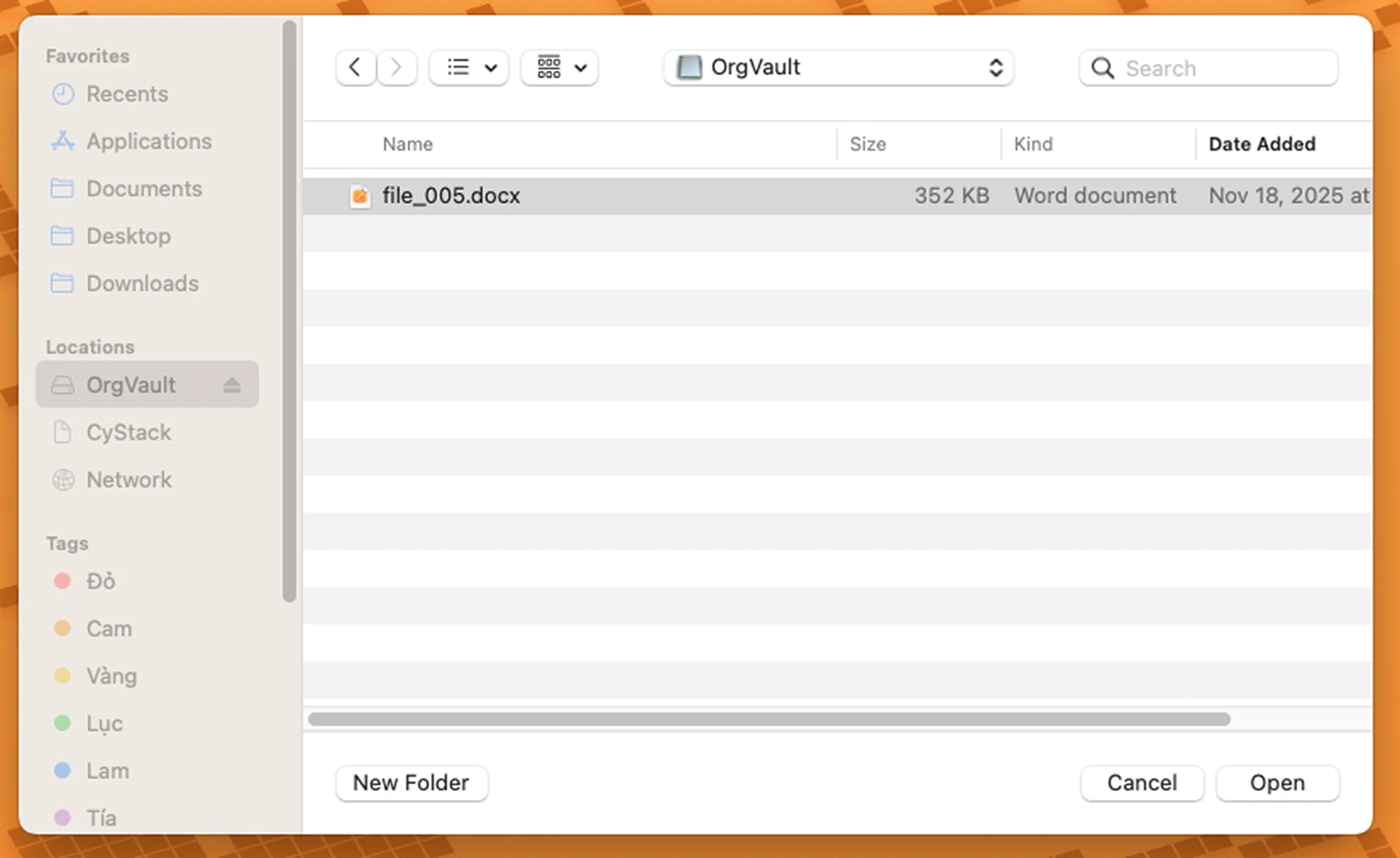 * **No approval required:** Link is generated immediately (default 30-day expiry).
* **Approval required:** System sends a request to the Approver. Once approved, the link will be displayed on screen and notified via Email.
To retrieve an old link, repeat from Step 1 on the same file. The link remains valid if it has not expired or been stopped.
If the workspace has **Approval Mode** enabled, the link will only be created after an Approver grants permission. See: [Setup & Document Sharing Review](/endpoint/setup-and-review).
***
## Viewing a Shared Document (Viewer)
* **No approval required:** Link is generated immediately (default 30-day expiry).
* **Approval required:** System sends a request to the Approver. Once approved, the link will be displayed on screen and notified via Email.
To retrieve an old link, repeat from Step 1 on the same file. The link remains valid if it has not expired or been stopped.
If the workspace has **Approval Mode** enabled, the link will only be created after an Approver grants permission. See: [Setup & Document Sharing Review](/endpoint/setup-and-review).
***
## Viewing a Shared Document (Viewer)
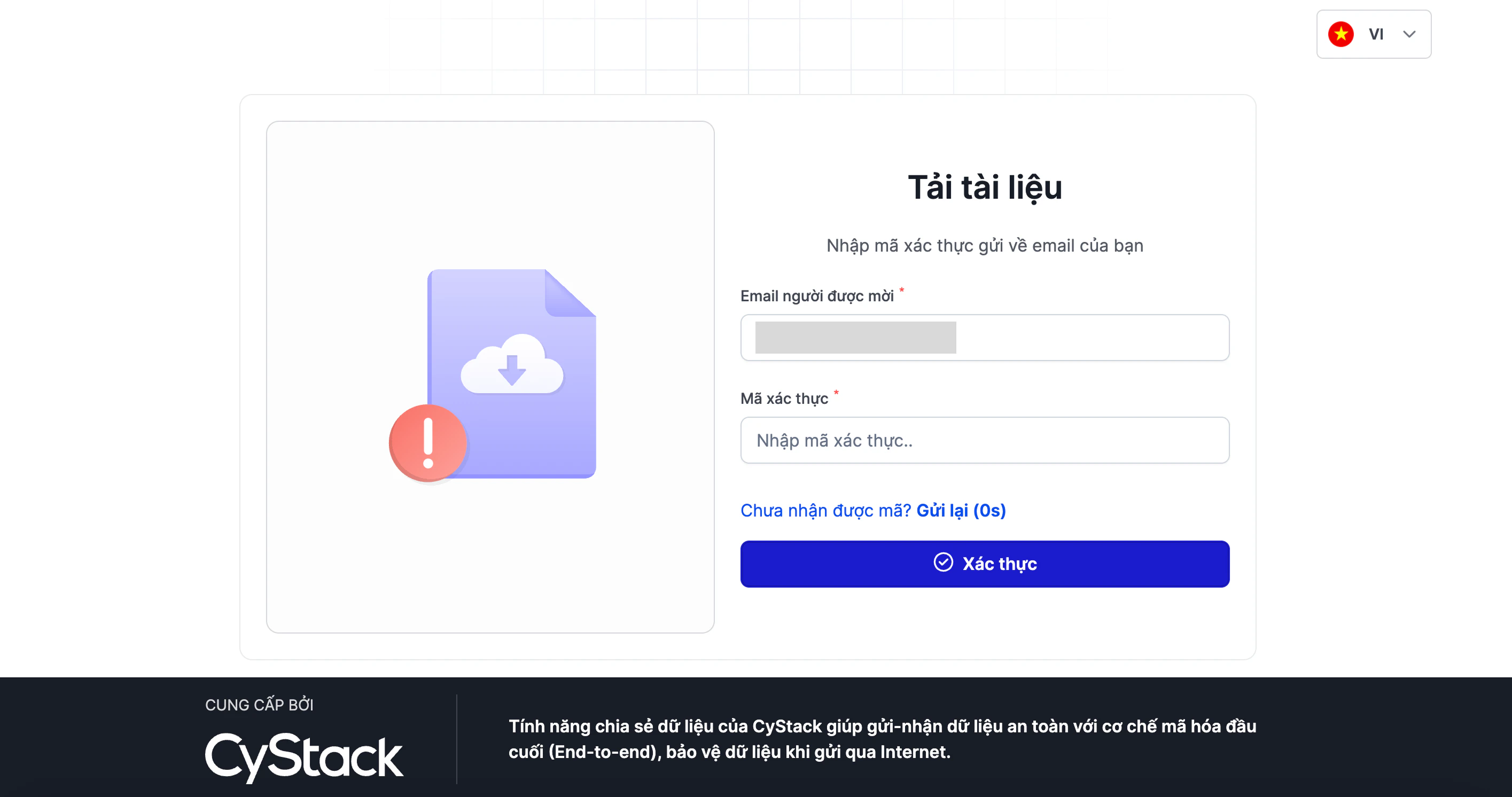 Sharing links have a default expiry of 30 days. If the link has expired or been revoked, contact the sender to generate a new one.