> ## Documentation Index
> Fetch the complete documentation index at: https://docs.cystack.net/llms.txt
> Use this file to discover all available pages before exploring further.
# Data Labeling and Policy Enforcement
> Guide to using the Data Labeling feature and applying label-based security policies
**Use Cases**
* Classify documents to determine sharing permissions (allow or block).
* Automatically assign labels to documents based on organizational rules.
* Automatically block or allow the sharing of labeled data according to defined policies.
## Understanding Document Labels
In CyStack Endpoint, administrators can define specific rules to automatically assign labels to documents on user endpoints. For example, a design firm wishing to prevent the external sharing of intellectual properties can configure the system to block the sharing of specific file types such as .psd, .psb, or .ai.
Data labels consist of the following components:
* **Data Rules**: Defined based on file name, file type, or content. Files with names, content, or types matching the criteria designed by the administrator will automatically receive the corresponding label.
* **Label Policies**: These determine sharing permissions—whether a document is allowed to be sent, restricted to specific channels, or strictly blocked. Administrators can define a unique policy for each label to control how labeled documents are handled.
* **A document may be assigned multiple labels** if its attributes match the rules of several different labels. In such cases, the system enforces the policy with the **most restrictive** sharing rules.
***Example:** If a file is assigned both Label A with a `Block all sharing` policy and Label B with an `Allow via specific channels` policy {'\u2192'}, the system will apply the `Block all sharing` policy.*
***
## Creating and Applying Document Labels
Administrators can create document labels using the following workflow:
Access the dashboard, navigate to "Endpoint" {'\u2192'} "Data protection" {'\u2192'} "Data labeling".} />
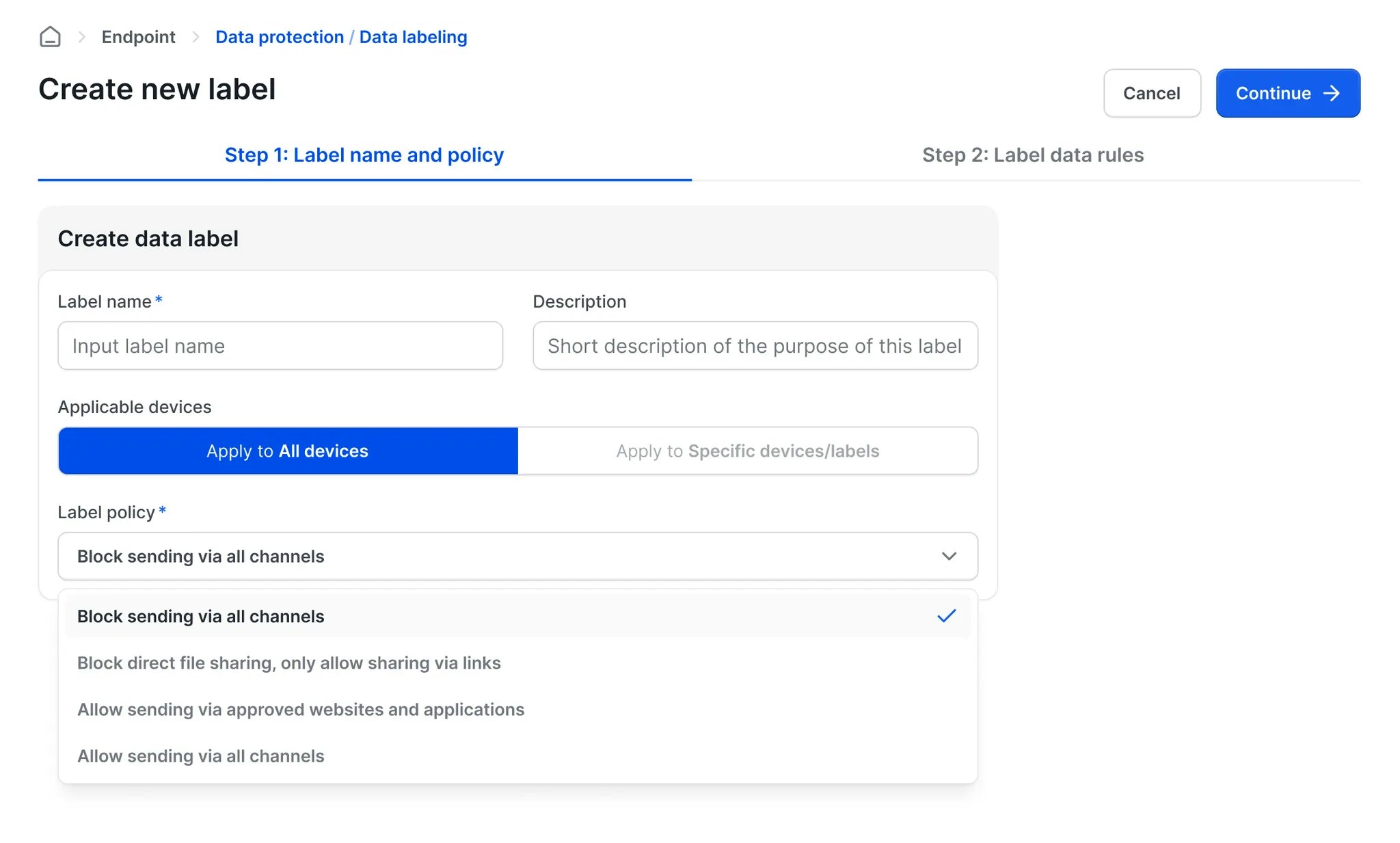
Click the New Label button {'\u2192'} The "Create new label" screen appears.} />
Enter the Label name, Description, Applicable devices, and Label policy, then click Continue.}>
 You can set rules based on `File name`, `File type`, or a combination of both. Files with attributes matching these rules will be assigned this label.
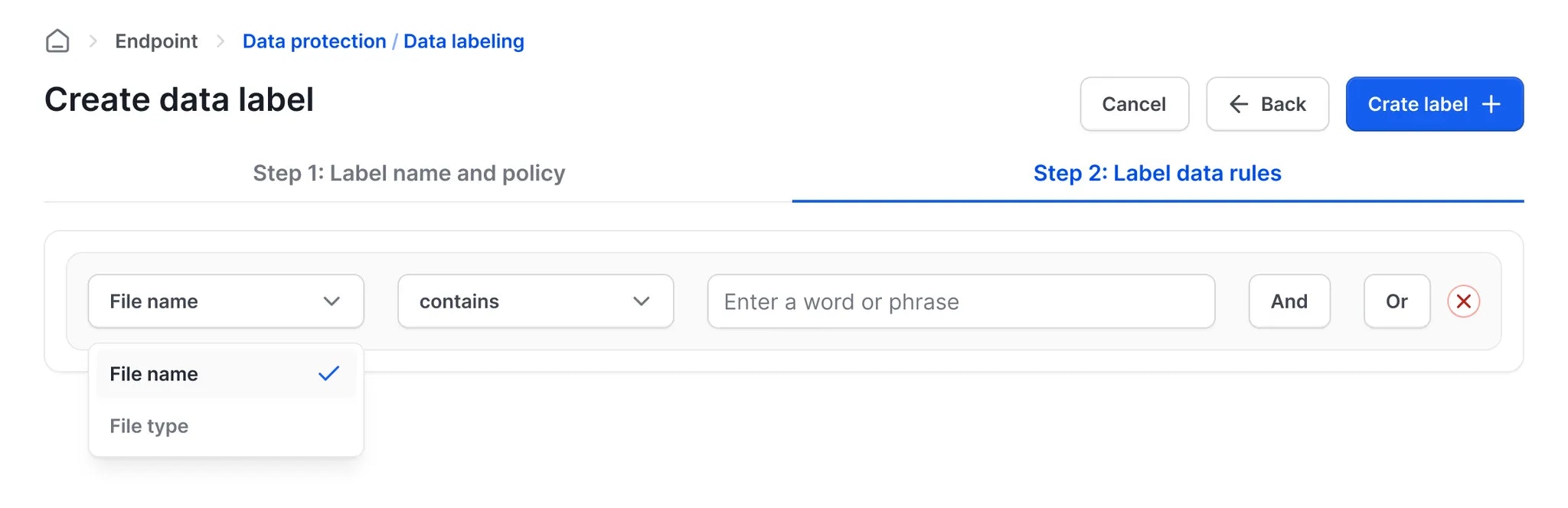 Click the
 Create Label button {'\u2192'} The label will be created and displayed in the list.}>
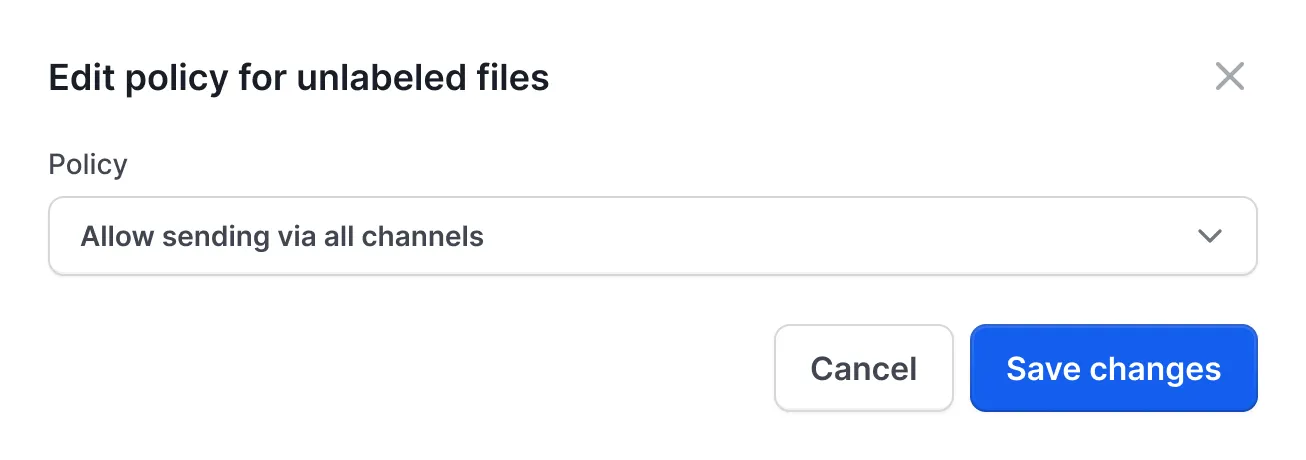
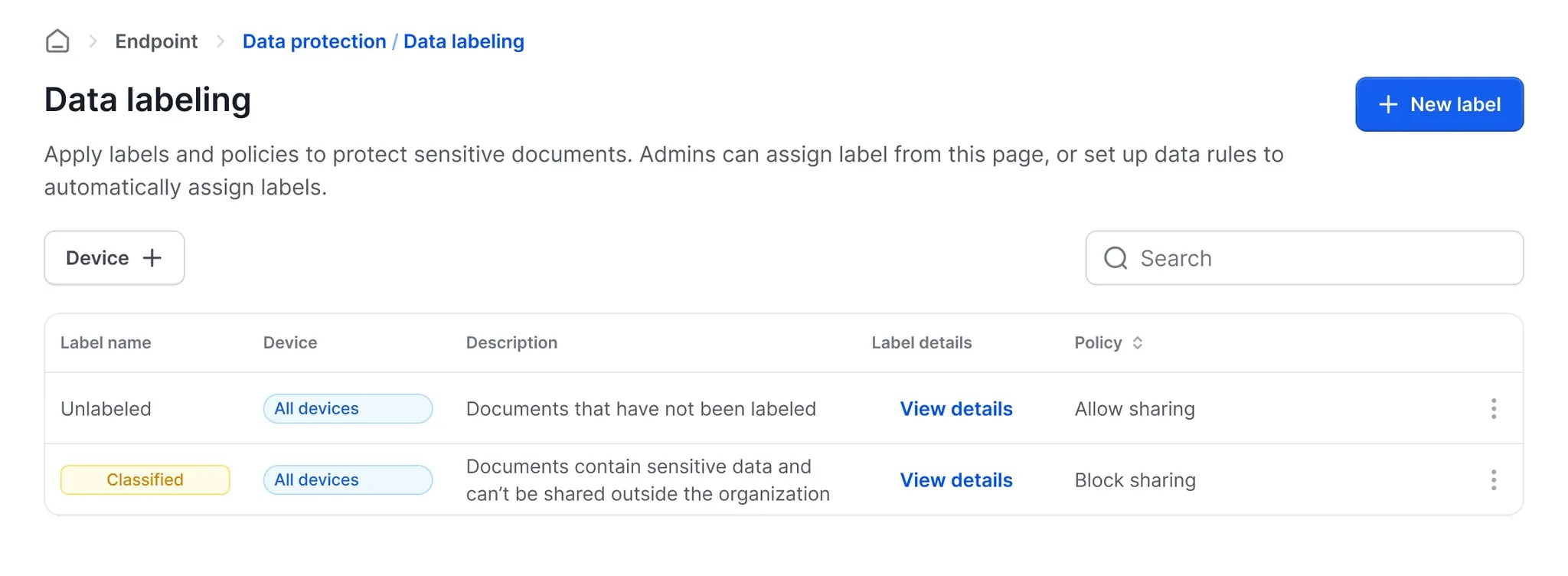 **Note:** Administrators can also define policies for documents that have not been assigned any label. For example, setting a default rule to block the sharing of unlabeled documents ensures maximum data control and reduces the risk of accidental leaks.
To configure this, follow these steps:
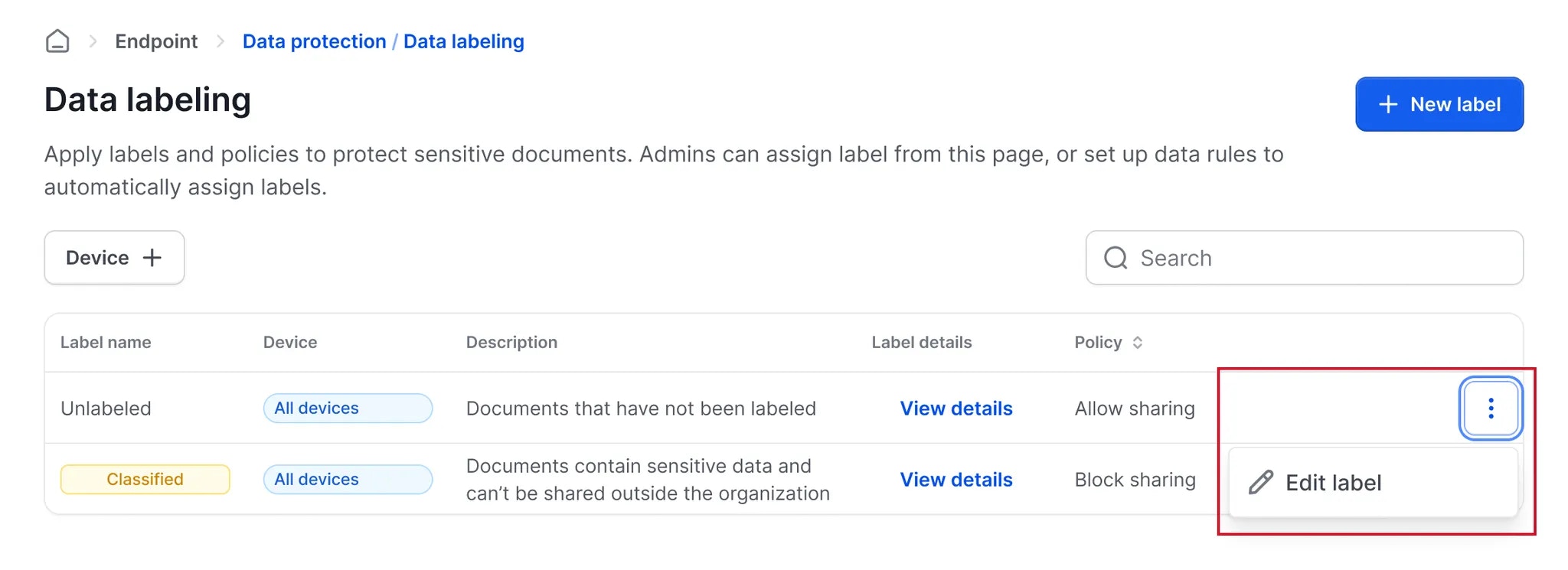
In the default "Unlabeled" section, click the
**Note:** Administrators can also define policies for documents that have not been assigned any label. For example, setting a default rule to block the sharing of unlabeled documents ensures maximum data control and reduces the risk of accidental leaks.
To configure this, follow these steps:
In the default "Unlabeled" section, click the Edit label button.}>
 ***
## Automatic Policy Enforcement on Endpoints
On user devices, security policies are automatically applied to documents based on their assigned labels. The available label policies are detailed below:
* **Block all sharing:** Documents with this policy cannot be sent via any channel.
* **Block direct transfer, allow link generation only:** Direct file sharing is blocked across all channels. To share the file, the user must generate a link and send it to the recipient. This method allows administrators to maintain control by auditing or approving sharing requests.
* **Allow via authorized channels:** Documents with this policy can only be shared through websites or applications explicitly authorized by the administrator.
* **Allow via all channels:** Documents with this policy can be shared freely across any channel without restriction.
***
## Automatic Policy Enforcement on Endpoints
On user devices, security policies are automatically applied to documents based on their assigned labels. The available label policies are detailed below:
* **Block all sharing:** Documents with this policy cannot be sent via any channel.
* **Block direct transfer, allow link generation only:** Direct file sharing is blocked across all channels. To share the file, the user must generate a link and send it to the recipient. This method allows administrators to maintain control by auditing or approving sharing requests.
* **Allow via authorized channels:** Documents with this policy can only be shared through websites or applications explicitly authorized by the administrator.
* **Allow via all channels:** Documents with this policy can be shared freely across any channel without restriction.