> ## Documentation Index
> Fetch the complete documentation index at: https://docs.cystack.net/llms.txt
> Use this file to discover all available pages before exploring further.
# Dashboard Walkthrough
> Guide to using the Dashboard
## Overview
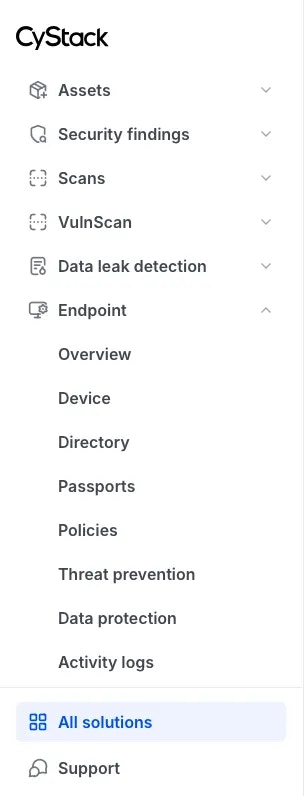
The left sidebar provides access to all products and services included in your subscription, organized by their respective functionality.
The **Endpoint** product is organized into the following categories:
* Overview
* Device
* Directory
* Passports
* Policies
* Threat prevention
* Data protection
* Activity logs
 ***
## All solutions Page
### All solutions
The **All solutions** tab located at the top of the top bar contains the complete portfolio of products and services provided by CyStack, centrally managed within the CyStack Platform. Users can locate and launch CyStack Endpoint from this page.
***
## All solutions Page
### All solutions
The **All solutions** tab located at the top of the top bar contains the complete portfolio of products and services provided by CyStack, centrally managed within the CyStack Platform. Users can locate and launch CyStack Endpoint from this page.
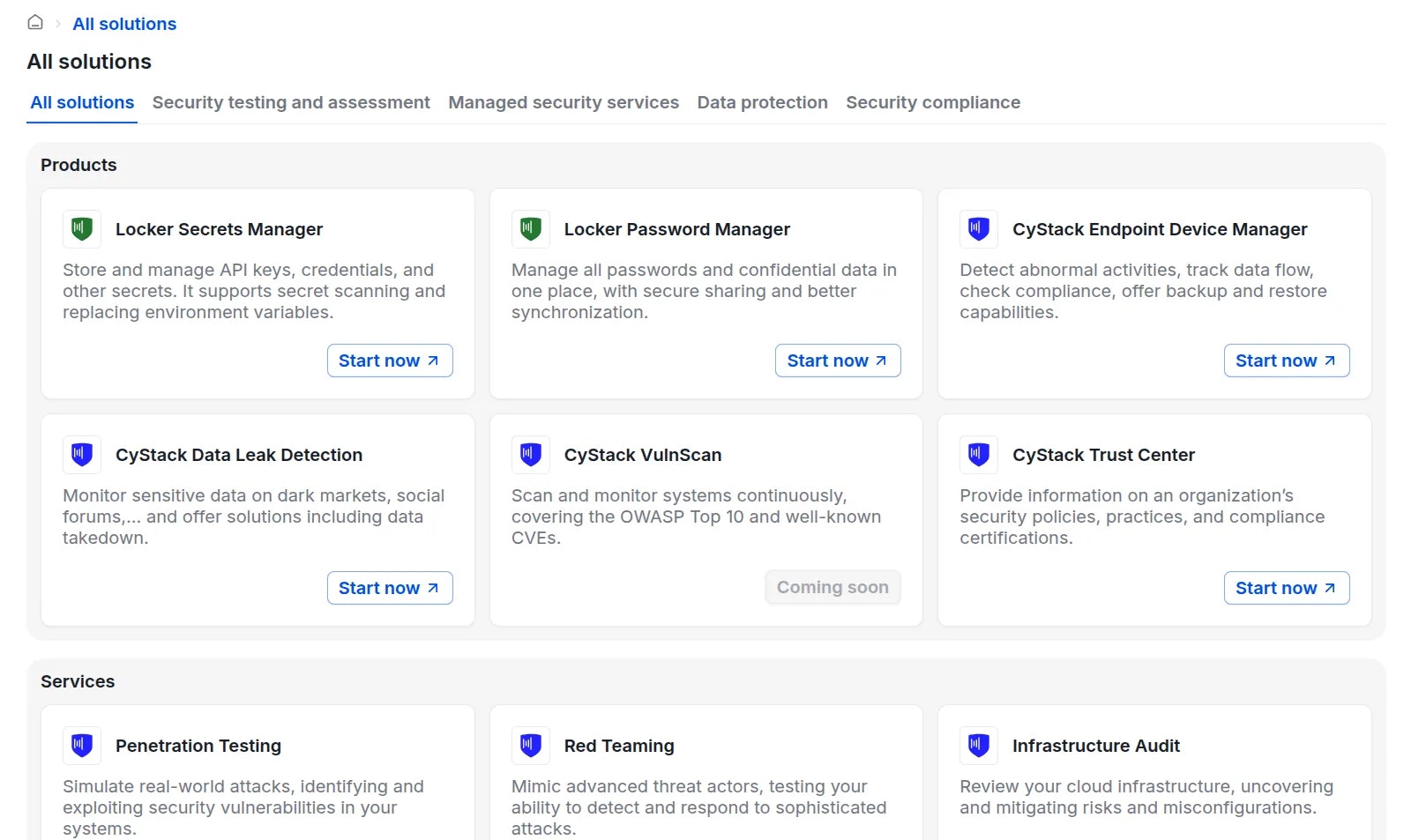 Products and services are categorized into **4 groups** for easier navigation:
***
### Account Settings
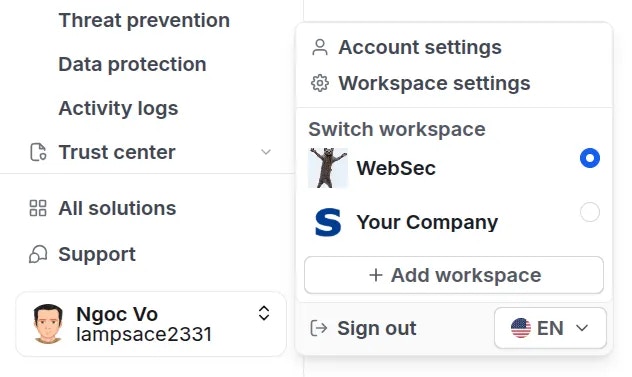
Click on the **Account** section at the bottom right of the screen to access the following options:
* Account settings
* Workspace settings: Edit basic organization details, manage workspace members, and update billing information.
* Switch between workspaces
* Create a new workspace
* Sign out
Products and services are categorized into **4 groups** for easier navigation:
***
### Account Settings
Click on the **Account** section at the bottom right of the screen to access the following options:
* Account settings
* Workspace settings: Edit basic organization details, manage workspace members, and update billing information.
* Switch between workspaces
* Create a new workspace
* Sign out
 ***
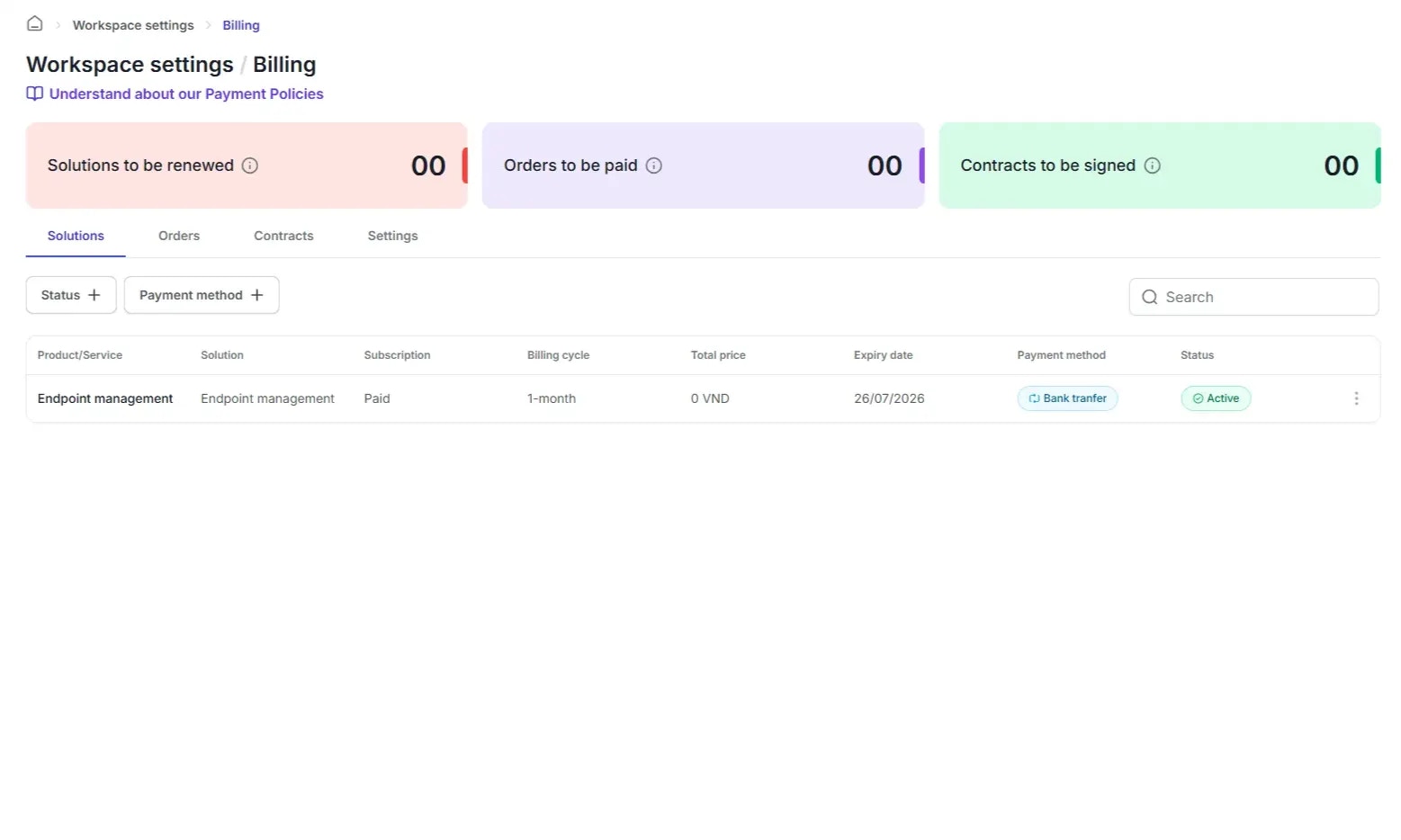
### Billing
The Billing section consists of **4 tabs**:
* **Solutions:** Lists the active product and service packages currently used by your organization.
* **Orders:** Displays a history of paid and pending invoices.
* **Contracts:** Stores signed agreements between your organization and CyStack.
* **Settings:** Modifies your organization's billing contact information.
***
### Billing
The Billing section consists of **4 tabs**:
* **Solutions:** Lists the active product and service packages currently used by your organization.
* **Orders:** Displays a history of paid and pending invoices.
* **Contracts:** Stores signed agreements between your organization and CyStack.
* **Settings:** Modifies your organization's billing contact information.
 ***
### Support
Click the "Support" button at the bottom of the sidebar to open a chat window on the right side of the screen. Users can communicate directly with the CyStack team via this chat interface or contact support via email at **[support@cystack.net](mailto:support@cystack.net)**.
***
### Support
Click the "Support" button at the bottom of the sidebar to open a chat window on the right side of the screen. Users can communicate directly with the CyStack team via this chat interface or contact support via email at **[support@cystack.net](mailto:support@cystack.net)**.